New version of CRMQuickDeploy adds tighter integration with CRM Developer Toolkit and productivity shortcut

I have released version 2.5 of CRMQuickDeploy (previously known as BNH.CRM.Debugging). This version adds tighter integration with CRM Developer Toolkit projects and a new productivity shortcut.

Download it now!

You can download the latest version of CRMQuickDeploy from the Visual Studio Gallery.

Tighter integration with CRM Developer Toolkit

For web resources, the extension now checks if the project is the CRM Developer Toolkit package project; and if so will use the Description, Display Name and Unique Name properties of the file to deploy the web resource.

1 File Properties

If the project is not a CRM Developer Toolkit package project, then the extension falls back to using the location of the file within the project to determine its unique name in CRM.

New productivity shortcut

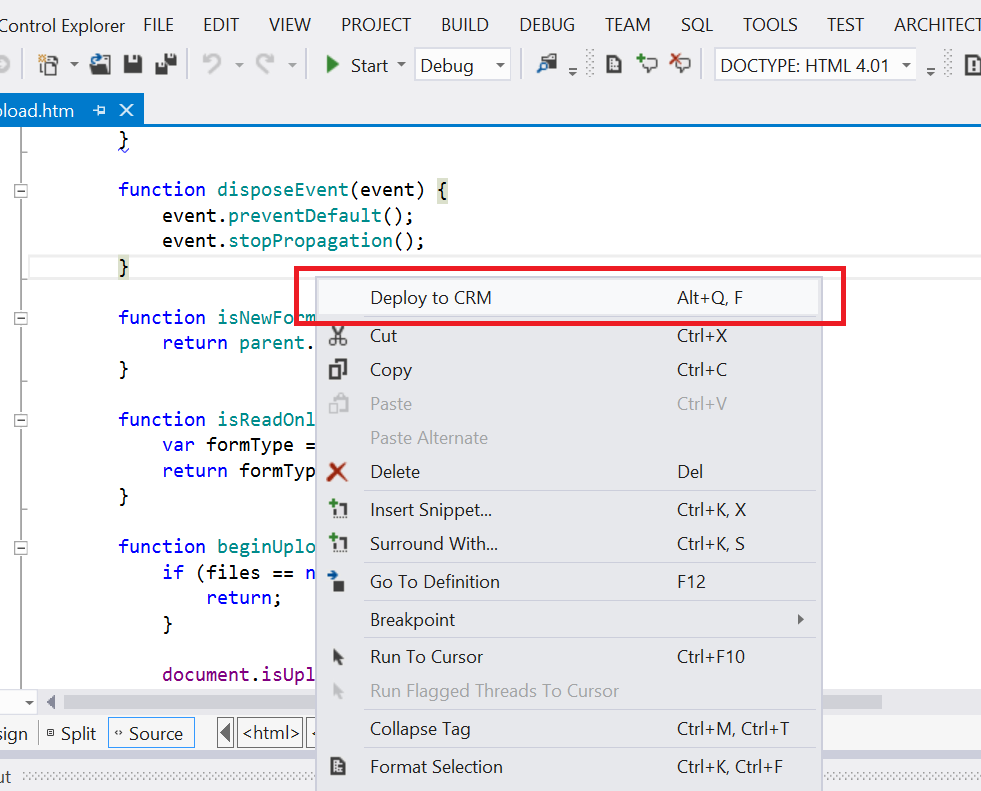
A new keyboard shortcut (Alt + Q, F) and context menu has been added to the code editor for web resources.

2 Editor Context Menu

This command deploys the file that is currently opened in the editor to CRM.

Note that this command will only be enabled and appear in the editor context menu for files that are recognised as deployable web resources. This means the file must be located under the WebResources folder of the project, and must be one of the web resource types (e.g. JavaScript, CSS, HTML, XML, etc).

Changes to shortcut keys in previous versions

Previous versions of the extension uses shortcut keys beginning with Alt + D by default. In this version all shortcut keys have been changed to begin with Alt + Q to avoid conflict with Visual Studio’s OOTB commands.

Note that you can edit the shortcut key for all commands in Visual Studio by going to: Tools \ Customize \ Keyboard (on the Toolbars tab).

The complete list of shortcut keys in this version is as follow:

  • Alt + Q, B: Deploy assemblies to Bin Folder
  • Alt + Q, D: Deploy assembly to CRM Database
  • Alt + Q, G: Deploy assemblies to GAC
  • Alt + Q, W: Deploy web resources
  • Alt + Q, F: Deploy web resource in current editor to CRM
  • Alt + Q, A: Attach to Async Service
  • Alt + Q, I: Attach to IIS
  • Alt + Q, S: Attach to Sandbox Worker
Posted in CRM, CRMQuickDeploy | Leave a comment

Correcting available lookup views when restricting lookup types via JavaScript in CRM

Although unsupported, in CRM you can use JavaScript to restrict the available lookup types for a lookup field on the form. For example, on the Email form I’d like to restrict the Regarding field to be able to lookup Client and Incident records only. Below is the code that’d (partially) achieve this. Again, please note that this is unsupported.

//The code below is for CRM 2011. In CRM 2013 (and possibly 2015), 
//the ID for DOM elements that represent fields are suffixed with '_i'.
//Therefore, the ID below in CRM 2013 would be 'regardingobjectid_i'.

var regardingField = document.getElementById("regardingobjectid");
regardingField.setAttribute("lookuptypes", "2,112");

2 and 112 are the object type codes for Client and Incident. Below is the result of the above code.

1 Lookup Types

While this looks like it does the trick, something is wrong if you look closely. The list of available lookup views is not correct. It is still listing the available lookup views for the Account entity, not the Client entity. Note that this would only occur if you launch the lookup dialog, and the lookup field on the form does not currently have a value, e.g. when creating a brand new Email.

The lookup element has a number of attributes that control its behaviour. One of these is the defaulttype attribute, and it seems that the dialog is listing the available lookup views for the defaulttype by default. So to fix this, we need to set defaulttype to one of our allowable lookup types. This can be achieved with the additional line of code below.

regardingObject.setAttribute("defaulttype", "2");

Below is the result of this additional line.

2 Lookup Types

OK this looks better, but there is however another issue. In the dialog, if you change the lookup entity to something else (e.g. Incident), and then switch back to the default type (i.e. Client in this example), you will find that a lookup view is not selected by default. Furthermore, if you go ahead and pick a lookup view and select a record and click OK, then you will receive a JavaScript error from CRM.

To correct this issue, we need to set another attribute for the the lookup DOM element, namely defaultviewid. Below is the additional line of code.

regardingObject.setAttribute("defaultviewid", "");

So in conclusion, to avoid issues when restricting lookup types, the complete code you should use is as below.

var regardingObject = document.getElementById("regardingobjectid");
regardingObject.setAttribute("defaulttype", "2");
regardingObject.setAttribute("defaultviewid", "");
regardingObject.setAttribute("lookuptypes", "2,112");

This was observed on CRM 2011 with UR 18.

Posted in CRM | Leave a comment

Programmatically setting toolbar type for list view web part [SharePoint]

If you ever tried to programmatically set the toolbar type for a list view web part then you will find that this is not at all straightforward. There are actually quite a lot of posts about this on the net, and they all involve using reflection to invoke various private methods. The simplest way I have found is to invoke the SetToolbarType private method of the SPView class. Using ILSpy you can see that there are two overloads for this method, one takes a uint and the other takes a string for the toolbar type. The first overload translates the uint to a string value and invokes the second overload.

For a recent project we used PowerShell to add the list view web part to a rich text field on a page and then turn off the toolbar. Below is the complete script to do this – please review the inline comments.

###Declare a custom enum. The names of the enum members match the string values that the SetToolbarType method expects.
Add-Type -TypeDefinition @"
    public enum ToolbarType
    {
        Standard,
        FreeForm,
        None,
        ShowToolbar
    }   
"@

###These functions are required as we are adding the web part to a rich text field, rather than to a web part zone.
Function RegisterWebPartForPageRendering([Microsoft.SharePoint.WebPartPages.SPLimitedWebPartManager] $webPartManager, [System.Web.UI.WebControls.WebParts.WebPart] $webPart)
{
    $WEB_PART_ZONE_ID = "wpz";

    $webPartStorageKey = [Guid]::NewGuid()
    $webPart.ID = GetWebPartIDFromStorageKey $webPartStorageKey

    $webPartManager.AddWebPart($webPart, $WEB_PART_ZONE_ID, 0);
    return GetHtmlForWebPart $webPartStorageKey
}

Function GetWebPartIDFromStorageKey([Guid] $storageKey)
{
    return "g_" + $storageKey.ToString().Replace('-', '_');
}

Function GetHtmlForWebPart([Guid] $webPartStorageKey)
{
    return [String]::Format(@"

<div class='ms-rtestate-read ms-rte-wpbox' contentEditable='false' unselectable='on'>

<div class='ms-rtestate-notify ms-rtestate-read {0}' id='div_{0}' unselectable='on'></div>


<div style='display:none' id='vid_{0}'unselectable='on'></div>

</div>

"@, $webPartStorageKey.ToString());
}

###This is the method that does the magic. It is invoked by the main script below.
Function SetViewToolbar([Microsoft.SharePoint.SPView] $view, [ToolbarType] $toolbarType)
{
    $setToolbarTypeParameterTypes = [uint32]
    $setToolbarTypeMethod = $view.GetType().GetMethod("SetToolbarType", [System.Reflection.BindingFlags]::Instance -bor [System.Reflection.BindingFlags]::NonPublic, $null, $setToolbarTypeParameterTypes, $null)
    $setToolbarParameters = [uint32] 1
    
    $setToolbarTypeMethod.Invoke($view, $setToolbarParameters)
    $view.Update()
}


###Get the web's landing page. The web part will be added to this page.
$web = Get-SPWeb "http://myServer/myWeb"
$publishingWeb = [Microsoft.SharePoint.Publishing.PublishingWeb]::GetPublishingWeb($web)
$defaultPage = $publishingWeb.DefaultPage

###Check out the page so we can edit it
$defaultPage.CheckOut()

###Get the page's web part manager
$defaultPageItem = $defaultPage.Item
$webPartManager = $defaultPageItem.File.GetLimitedWebPartManager([System.Web.UI.WebControls.WebParts.PersonalizationScope]::Shared)

###Delete all the web parts currently on the page
$allWebParts = $webPartManager.WebParts | Select $_
ForEach ($webPart in $allWebParts)
{
    $webPartManager.DeleteWebPart($webPart);
}

###Instantiate a new list view web part
$targetList = $web.Lists.TryGetList("My List")
$listViewWebPart = New-Object Microsoft.SharePoint.WebPartPages.XsltListViewWebPart
$listViewWebPart.ListName = $targetList.ID.ToString("B")
$listViewWebPart.ViewGuid = $targetList.Views["My View"].ID.ToString("B")
$listViewWebPart.Title = "My List View Web Part"

###Add the web part to the rich text field
$content = RegisterWebPartForPageRendering $webPartManager $listViewWebPart
$defaultPageItem["PublishingPageContent"] = $content

###As we are adding a new web part to be page, be sure to call Update on the page before 
###accessing the View property of the web part, otherwise it will be null.
$defaultPageItem.Update()

###Access the View used by the list view web part and set the toolbar type
$view = $listViewWebPart.View
SetViewToolbar $view None

###All done, update the page and check in.
$defaultPageItem.Update()
$defaultPage.CheckIn([String]::Empty, [Microsoft.SharePoint.SPCheckinType]::MinorCheckIn)
Posted in SharePoint 2013 | 3 Comments

Publishing deployment package with SPClientSideDeployment 1.1

With SPClientSideDeployment you can point Visual Studio to any environment and deploy your files to that environment. This is fine for development, but typically is not good practice for higher environments. Most organisations dictate that a package is given to IT Ops, who will perform the deployment to these higher environments.

The 1.1 release of SPClientSideDeployment adds a new feature that allows you to generate a deployment package for your project. The package comes with a PowerShell script that can be executed to deploy the files to your target environment, which can be any local or remote SharePoint instance, including SharePoint Online. Once generated, the package is ready to be handed over to another party to execute the deployment.

Download it now!

You can download the latest version of SPClientSideDeployment from the Visual Studio Gallery.

Publishing the Package

There are a couple of ways to publish the package for a project.

  • Alt Q + A:   Publish the package for the solution’s StartUp project. This can also be accessed from Tools \ SharePoint Deployment \ Publish Deployment Package.
    1a Tool Menu
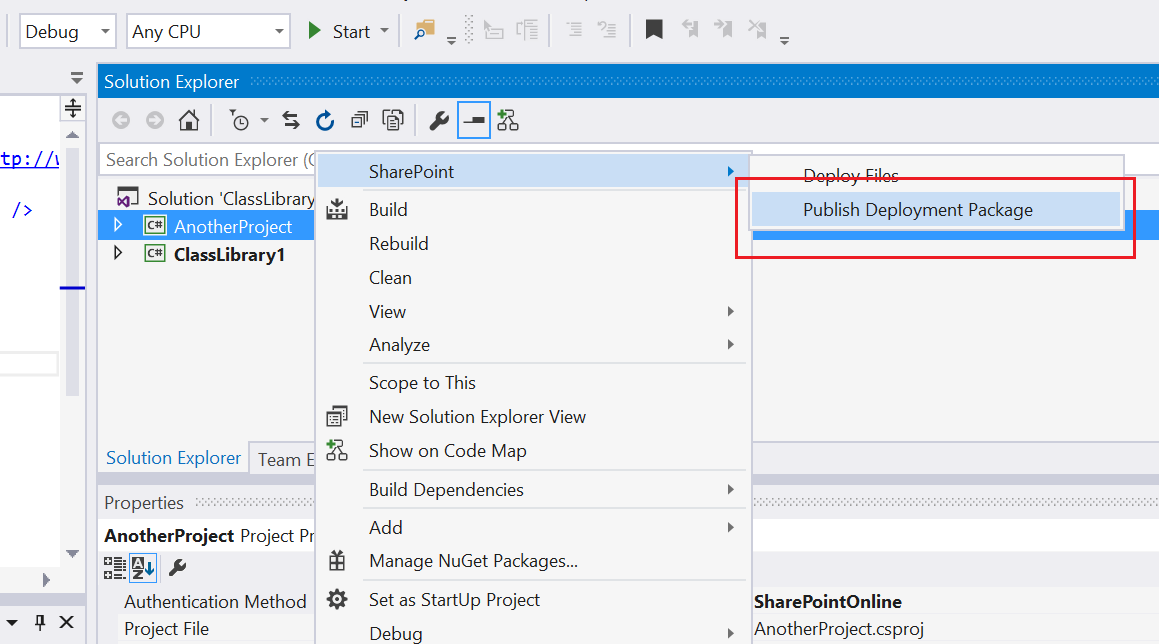
  • Right click a project in the Solution Explorer and choose SharePoint \ Publish Deployment Package.1 Project Context Menu

You are then prompted to select a location for the package.

2 Select Publish Location

Click OK and a package is generated at the selected location for your project.

What does the package contain?

The following items are copied to the selected package location:

  • All items in the project that are referenced in the project’s DeploymentSettings.xml file
  • The project’s DeploymentSettings.xml file
  • A PowerShell script file, namely DeployFiles.ps1. This file is generated by the tool and can be used to deploy the files.
  • SharePoint client-side assemblies

Executing the DeployFiles.ps1 script

This script uses CSOM to deploy the files in the package to a local or remote SharePoint instance, including SharePoint Online. The SharePoint client-side assemblies are included in the package. This means you can execute the script on any machine, even one that does not have SharePoint installed.

Note that the script must be executed from within the package folder.

The parameters for the script are as follow:

  • [string] SiteUrl:   Mandatory. URL for the target SharePoint web. All files will be deployed to this web or sub-web(s) under this web.
  • [string] DeploymentSettingsFilePath:   Mandatory. The path to the DeploymentSettings.xml file that will be used to deploy the files. This file must be located within the package folder.
  • [string] UserName:   Optional. User name that will be used to authenticate to the target web(s) and deploy the files. This parameter is only optional when Windows is specified for the AuthenticationMethod parameter. If this parameter is not specified, and the authentication method is Windows, then the credentials of the current user will be used for deployment.
  • [string] Password:   Optional. Password for the specified user name. This parameter is only optional when Windows is specified for the AuthenticationMethod parameter. If this parameter is not specified, and the authentication method is Windows, then the credentials of the current user will be used for deployment.
  • [string] AuthenticationMethod:   Optional. The authentication method that will be used. Valid values are Windows, Forms or SharePointOnline. The default is Windows.
  • [switch] Force:   Optional. If Force is specified, existing files that are checked out to another user on the target instance will be overwritten. Else, these files will not be deployed.

What does the DeployFiles.ps1 script do?

Similar to SPClientSideDeployment’s Visual Studio command, this script reads the DeploymentSettings.xml file and deploys files to the specified locations. It however does the extra things below that the Visual Studio command does not.

  • The script creates all folders on the path specified in the targetFolder attribute in the DeploymentSettings.xml file if they do not exist at the target instance. For example, if the targetFolder is Style Library/MyPortal/CSS/Mobile, and the CSS and Mobile folders do not exist, then they will be created by the script. The first level on the path is the target library, and for libraries underneath _catalogs it is the first two levels, e.g. _catalogs/masterpage. These levels are never created by the script.
  • The script publishes a major version for all deployed files. If content approval is enabled on the target library, the script will approve the files.
  • If the Force parameter is specified, the script will overwrite existing files that are checked out to another user (other than the current user) at the target instance. Similar to the Visual Studio command, existing files that are checked out to the current user will always be overwritten.

Customising the DeployFiles.ps1 script

Each time you republish the deployment package, all existing files in the selected package location will be overwritten. For this reason, never modify the DeployFiles.ps1 file directly.

On execution, the DeployFiles.ps1 script loads a second script, namely DeployFiles-Custom.ps1, if it is present in the package folder. You therefore can customise any function in DeployFiles.ps1 using the following steps:

  1. Create DeployFiles-Custom.ps1 at the root of the package folder (where DeployFiles.ps1 is found)
  2. Copy the function to be customised from DeployFiles.ps1 to the custom file in step 1. Do not change the function signature.
  3. Customise the body of the function in the custom file

Pre/PostDeployFiles events

The script calls the PreDeployFiles function and PostDeployFiles function before and after deploying the files. To hook into these events, override these functions in the DeployFiles-Custom.ps1.

Conclusion

SPClientSideDeployment has always allowed you to quickly deploy files from Visual Studio to SharePoint during development. This new feature takes this further by allowing you to publish your project as a ready-to-go package for promotion that reuses the same deployment configuration that has been tested during development.

I hope you find this feature useful and let me know if you have any feedback or suggestion.


Posted in SharePoint 2013, SPClientSideDeployment | Leave a comment

SPClientSideDeployment: a new productivity Visual Studio extension for SharePoint developers

I have released a new Visual Studio extension that allows you to deploy files from within Visual Studio to SharePoint using CSOM. This extension works with both SharePoint On-Prem (local or remote server) and SharePoint Online, and on any C#, VB.NET or SharePoint project template. Keyboard shortcuts are included to maximise your productivity!

1 Demo

Download it now!

Download from Visual Studio Gallery

Getting started – specifying your target site

Three properties are added to the property grid for a project. These are SharePoint URL, Authentication Method, and User Name.

2 Properties

Specify the URL of the target site collection or sub-web in the SharePoint URL property. Deployable files within the project will be deployed to locations underneath this URL.

SharePoint project templates already have a Site URL property OOTB, and this is reused by the extension. For these project templates, only the Authentication Method and User Name properties will be available.

Choosing your authentication method

The extension supports the following authentication methods:

3 Authentication Methods

  • Windows (integrated authentication): set the Authentication Method to Windows and do not specify a user name.
  • Windows (user name and password): set the Authentication Method to Windows and specify a user name.
  • Form: set the Authentication Method to Form and specify a user name.
  • SharePoint Online: set the Authentication Method to SharePointOnline and specify a user name.

Entering your password for deployment

Except for Windows integrated authentication, all other methods prompt you to enter a password when you first execute the deployment for a given project.

4 Password Prompt

The password is cached in memory for the project and is never written to file. The cache is clear when the solution is closed.

Configuring the deployment

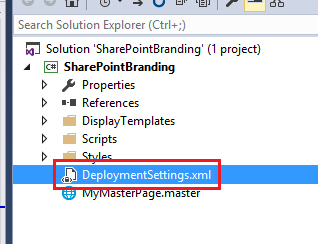
Each project requires a deployment settings file. This file should be named DeploymentSettings.xml and should sit at the root of the project. This file defines which files in the project will be deployed, their target locations, and the metadata to apply in SharePoint.

5 Deployment Settings File

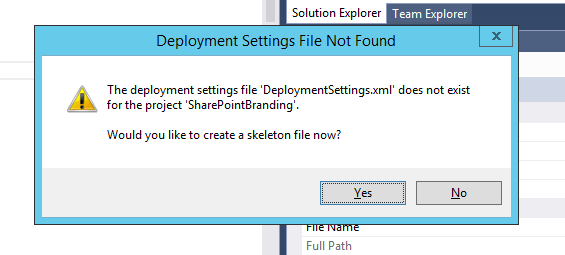
The extension can create a skeleton deployment settings file for you if one does not already exist in the project. Right click the project in the Solution Explorer and choose SharePoint \ Deploy Files.

6 Project Menu

Then chooses Yes in the dialog that appears.

7 Create Prompt

This creates a skeleton file as below. Please review the comments in the file, which explain the schema.

<?xml version="1.0" encoding="utf-8" ?>
<DeploymentSettings>
	<Files>
		<!-- 
			localPath:	Required. Local path of the file to deploy. Relative to the current project. Value should not start with '/'. For link items, specify
						the localPath relative to the current project as if the item is a normal item.						
		-->
		<File localPath="Script1.js">
			<!-- Multiple destinations per local file are supported. -->
			<Destinations>
				<!--
					targetWeb:			Optional. Relative to the deployment URL setting specified for the current project. If not specified, then the web at the URL setting will
										be used. Value should not start with '/'. 										
					targetFolder:		Required. Relative to targetWeb. Value should not start with '/'. Use this to target a library, or a folder/sub-folder within a library.
										The specified path must already exist at the target web. Here are some examples: 
										
											_catalogs/masterpage/display templates/content web parts
											Style Library/MyPortal/CSS/Mobile
											
					targetFileName:		Optional. The file name that will be used at the target location. If not specified, the local file name will be used.
				-->
				<Destination targetWeb="" targetFolder="Style Library" targetFileName="script1.js"/>
			</Destinations>
			
			<!-- Optional. -->
			<Metadata>
				<!--
					name:				Required. Internal name of the field to set. 
					value:				Required. Value for the field to set. 
				-->
				<Field name="Title" value="Script 1"/>
				
				<!-- Multiple fields are supported. -->
			</Metadata>
		</File>
	</Files>
</DeploymentSettings>

The deployment settings file is automatically kept in sync when you delete or rename a file in the project.

Kicking off the deployment

There are a couple of ways to kick off a deployment.

  • Alt + Q, F: Starts deployment for the solution’s StartUp project. All deployable items within this project will be deployed. This can also be accessed from Tools \ SharePoint Deployment \ Deploy Files.8 Menu
  • Right click a project in the Solution Explorer and choose SharePoint \ Deploy Files. This will deploy all deployable items within this project.
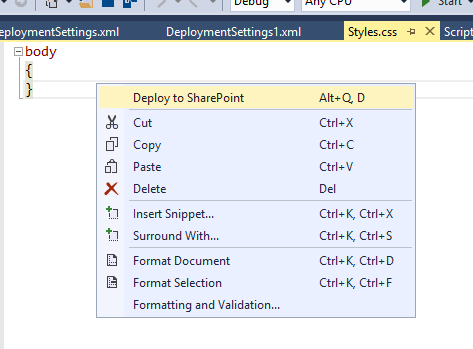
  • Alt + Q, D in the code editor window. This will deploy only the current item. This can also be triggered by clicking Deploy to SharePoint from the editor’s context menu. Note that this command is not available for .CS or .VB files.9 Context Menu

Handling of check-in and check-out

The extension always attempts to check-in the file after it has been deployed. If minor version is enabled at the target location, then the file will be check-in as a minor version.

If a file needs to be updated, the extension attempts to check-out the file (if it is not currently checked out to the user). The file will be check-in after it has been updated (if it was check-out by the extension prior to the update). A comment is recorded in the version history for each update.

10 Version History

A note on SharePoint Online

To deploy to SharePoint Online, ensure that scripting is enabled for your tenant. Please refer to this article for more details.

That’s it! I hope you will find this tool useful and an improvement to your productivity – and I’d love to hear from you with feedback and suggestions.

Posted in SharePoint 2013, SPClientSideDeployment | 14 Comments

Search query to find pages in current site and all sub-sites [SharePoint]

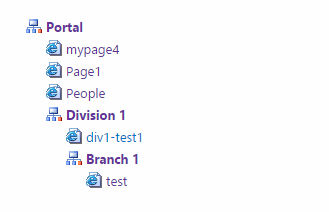
I was given a challenge to develop a mechanism to list all pages in the current site and its sub-sites. Why not do it using Content By Search Web Part was my initial thought. In the end I managed to achieve this, and the prototype looks like below.

1 Prototype


One of the most satisfying things in this exercise was coming up with the query to return the right search results, which is:

SPSiteUrl:{SiteCollection} Path:{Site} (IsDocument:”True” OR contentclass:STS_Site OR contentclass:STS_Web) FileExtension:aspx

SPSiteUrl:{SiteCollection} is used to restrict items to the current site collection. Without this clause, other site collections that are under managed paths (e.g. http://server/sites/mySC) may be included in the result when searching from the root site collection (e.g. http://server).

Path:{Site} is used to restrict items to those under the current site’s URL.

The rest should be self-explanatory.

The grouping/indenting by sites is performed in my custom display templates. To achieve this I had to ensure that the items are returned in the correct order, i.e. ordered by site and by URL depth.

I configured my search result to be sorted by SPWebUrl, then UrlDepth, and finally Path.

Note that the managed property SPWebUrl does not exist OOTB (at the time of writing). I had to create this in Central Admin and map it to the ows_taxId_SPLocationSite crawled property. I had to enable Query, Retrieve and Sort on this managed property.

The other thing is Sort is also not enabled by default for the Path managed property. I also had to change this in Central Admin.

If you are interested in the display templates then let me know and I’ll update the post.


Posted in Search, SharePoint | 1 Comment

‘An unexpected error has occurred’ when cancelling from creating a new page [SharePoint]

On SharePoint 2013 we had an issue where the user was getting the error message below when cancelling from creating a new page in the Pages library.

Sorry, something went wrong

An unexpected error has occurred.

The correlation ID for this error will be an empty GUID (000000-000-etc).

The steps to reproduce this issue are as follow:

  1. Navigate to the Pages library
  2. Navigate to a particular view of the Pages library
  3. From the ribbon choose to create a new page of any content type
  4. On the Create Page, choose Cancel

It turns out that this problem is caused by a space in the file name of the view chosen in step 2 above.

In our case the file name of the view was “Fact Sheets.aspx”. This means that when we go to the view in step 2, the URL is encoded as “…/pages/forms/fact%20sheets.aspx”.

When we go to the Create Page in step 3, this URL is again encoded and passed on in the Source query string parameter as “…/pages/forms/fact%2520sheets%2Easpx”.

When we click Cancel in step 4, SharePoint takes us back to the URL found in the Source query string parameter. It seems however that SharePoint is not decoding this value. It therefore takes us to the page “…/pages/forms/fact%2520sheets%2Easpx”, which does not exist and therefore results in the error.

Renaming the file name of the view to “FactSheets.aspx” fixed the issue.

This issue was found on December 2014 CU.

Posted in SharePoint | Leave a comment

No log entries in ULS Viewer for real-time monitoring mode [SharePoint]

Recently we found that if you are using the updated ULS Viewer (16.0.3129.1000) from Microsoft (https://www.microsoft.com/en-au/download/details.aspx?id=44020), and you have changed the default logging path in Central Admin, then you may find that the real-time monitoring in ULS Viewer does not show any log entries. Opening a specific trace file however works fine.

Changing the logging path in Central Admin back to the default value and real-time monitoring in ULS Viewer starts to work again. This appears to be a bug in this version of the ULS Viewer.

Posted in SharePoint 2013 | Leave a comment

Custom workflow activity to process multiple related records [CRM]

We often need to process multiple records in a workflow, particular those related to the current target record. Think notifying all bookings when an event is rescheduled, or cancelling all orders when a product is cancelled. Unfortunately the OOTB CRM workflow designer does not have for-each or looping steps that would allow us to achieve this.

I have developed a custom workflow activity that would solve this problem in a generic manner. My solution is inspired by (and mostly based on) Lucas Alexander’s solution.

How it works

The custom workflow activity takes the following inputs:

  • A FetchXML query
  • Format parameters to parameterise the FetchXML query
  • A workflow to execute for each record returned by the FetchXML query

1 Workflow Inputs

Essentially the idea is that this step allows us to specify a FetchXML query, then parameterised the query with values from the current record, then triggers a separate workflow for each record returned by the parameterised query.

An example

For example, if a workflow was running on an Account record, and from this we wanted to trigger a separate workflow on all Contacts where the Parent Customer is the current Account record (by name, not ID – more on this later), then we’d define a FetchXML query as below. Notice the {0} placeholder for the condition clause.

<fetch version="1.0" output-format="xml-platform" mapping="logical" distinct="false">
  <entity name="contact">
    <attribute name="fullname" />
    <attribute name="telephone1" />
    <attribute name="contactid" />
    <order attribute="fullname" descending="false" />
    <link-entity name="account" from="accountid" to="parentcustomerid" alias="ae">
      <filter type="and">
        <condition attribute="name" operator="eq" value="{0}" />
      </filter>
    </link-entity>
  </entity>
</fetch>

In the workflow designer, we’d flatten the above query into a single line of text and use this as the FetchXML Query. For the FetchXML Query Format Argument 1, we specify the name of the current Account record. Finally we specify the separate workflow to execute on the Contacts matching our parameterised query. If we needed additional filtering, then we could use the remaining format arguments (use placeholder {1} in the query for FetchXML Query Format Argument 2, {2} for FetchXML Query Format Argument 3, etc.).

2 Workflow Setup

How about filtering by current record’s ID?

This is possible, but requires a bit more effort on your behalf. This is because the OOTB workflow designer does not have a way for us to get the ID of the current record. You’d need to develop another custom activity to output the ID of the current record, and then use that output as one of the format arguments for the query. A number of people have already developed such custom activities, here is an example.

For the query, of course you can code this by hand, or you can get Advanced Find to generate it for you. The Advanced Find below will perform the filtering by an Account ID. Download this query and replace the value in the condition clause with one of the placeholders.

3 Advanced Find

Show me the code!

Here is the code for the custom activity. As you can see, it is quite straightforward!

namespace BNH.CRM.Activities
{
	using System;
	using System.Activities;
	using Microsoft.Crm.Sdk.Messages;
	using Microsoft.Xrm.Sdk;
	using Microsoft.Xrm.Sdk.Query;
	using Microsoft.Xrm.Sdk.Workflow;

	public sealed class StartWorkflowForRecordsActivity : CodeActivity
	{
		//Inspired by
		//http://alexanderdevelopment.net/post/2013/05/19/scheduling-recurring-dynamics-crm-workflows-with-fetchxml/.

		[RequiredArgument]
		[Input("FetchXML Query")]
		public InArgument<string> FetchXmlQuery { get; set; }

		[Input("FetchXML Query Format Argument 1")]
		public InArgument<string> FetchXmlQueryFormatArg1 { get; set; }

		[Input("FetchXML Query Format Argument 2")]
		public InArgument<string> FetchXmlQueryFormatArg2 { get; set; }

		[Input("FetchXML Query Format Argument 3")]
		public InArgument<string> FetchXmlQueryFormatArg3 { get; set; }

		[Input("FetchXML Query Format Argument 4")]
		public InArgument<string> FetchXmlQueryFormatArg4 { get; set; }

		[Input("FetchXML Query Format Argument 5")]
		public InArgument<string> FetchXmlQueryFormatArg5 { get; set; }

		[RequiredArgument]
		[Input("Workflow to Execute")]
		[ReferenceTarget("workflow")]
		public InArgument<EntityReference> WorkflowToExecute { get; set; }

		protected override void Execute(CodeActivityContext context)
		{
			var serviceFactory = context.GetExtension<IOrganizationServiceFactory>();
			var service = serviceFactory.CreateOrganizationService(Guid.Empty); //Use current user's ID

			var recordsToProcess = service.RetrieveMultiple(new FetchExpression(GetFormattedFetchQuery(context)));
			foreach (var record in recordsToProcess.Entities)
			{
				var workflowRequest = new ExecuteWorkflowRequest
				{
					EntityId = record.Id,
					WorkflowId = this.WorkflowToExecute.Get(context).Id
				};
				service.Execute(workflowRequest);
			}
		}

		private string GetFormattedFetchQuery(CodeActivityContext context)
		{
			var query = this.FetchXmlQuery.Get(context);
			return String.Format(query,
				this.FetchXmlQueryFormatArg1.Get(context),
				this.FetchXmlQueryFormatArg2.Get(context),
				this.FetchXmlQueryFormatArg3.Get(context),
				this.FetchXmlQueryFormatArg4.Get(context),
				this.FetchXmlQueryFormatArg5.Get(context));
		}
	}
}

Download the solution

You can download this custom activity as an unmanaged solution here.

How about CRM Online?

Last but not least, this custom activity should also work on CRM Online. The assembly in the solution above is registered to run in Sandbox mode. If you are going to use this on-prem, consider re-registering it to run without isolation for performance reasons.

Summary

This custom activity allows you to process multiple records as part of your workflow. It is simple, yet powerful and generic. Hopefully this will open up some opportunities for you, and help you avoid writing plugins.

Posted in CRM, Workflow | 3 Comments