“Object reference not set to an instance of an object” when calling SPFarm.Local

If you are getting “Object reference not set to an instance of an object” when calling SPFarm.Local in a stand-alone app (e.g. console app), and you are developing against SharePoint 2010, then check that your project is set to target x64 or Any CPU. Setting it to target x86 (which is the default in VS 2010) will give you that error.

Posted in SharePoint 2010 | Leave a comment

Developing SharePoint workflows for MOSS 2007 x64 in Visual Studio 2010

There are a couple of postings about this on the web, but none seem to be complete. These are the steps I took to get this to work:

  • Ensure WSS 3.0 SDK is installed. Remember to restart VS 2010 after the installation.
  • Ensure WSPBuilder (with VS2010 integration) is installed.
  • Create a new VS project, of type WSPBuilder Project with Workflow.
  • Once the project is created, in VS right click the project and choose Add, then Sequential Workflow. There will be an error with the Designer.
  • Add the following references to the project. This will fix the Designer, but you will not have the SharePoint Workflows in the toolbox.
    • Microsoft.Office.Workflow.Tasks
    • Microsoft.SharePoint
    • Microsoft.SharePoint.WorkflowActions
    • System.Drawing
    • System.Workflow.Activities
    • System.Workflow.ComponentModel
    • System.Workflow.Runtime
    • System.WorkflowServices
  • In the Solution Explorer in VS, right click the project and choose Unload Project.
  • Right click the project again and choose to Edit the project file.
  • Locate the <ProjectTypeGuids> element underneath the first
    PropertyGroup element, it should look like below:

    <ProjectTypeGuids>{14822709-B5A1-4724-98CA-57A101D1B079};{FAE04EC0-301F-11D3-BF4B-00C04F79EFBC}</ProjectTypeGuids>

    Replace it with:

    <ProjectTypeGuids>{F8810EC1-6754-47FC-A15F-DFABD2E3FA90};{14822709-B5A1-4724-98CA-57A101D1B079};{FAE04EC0-301F-11D3-BF4B-00C04F79EFBC}</ProjectTypeGuids>

  • Save the project file and reload the project. You should now have the SharePoint Workflows in the toolbox.

Update: After the above steps I was able to create workflows and compile the project. When building the project on our TFS build server however, I got the errors below:

C:\Windows\Microsoft.NET\Framework64\v4.0.30319\Workflow.VisualBasic.Targets (147): The type or namespace name ‘TargetFrameworkAttribute’ does not exist in the namespace ‘System.Runtime.Versioning’ (are you missing an assembly reference?)

and

c:\Users\[build service acccount]\AppData\Local\Temp\.NETFramework,Version=3.5.AssemblyAttributes.cs (4): The type or namespace name ‘TargetFrameworkAttribute’ does not exist in the namespace ‘System.Runtime.Versioning’ (are you missing an assembly reference?)

I did these additional tweakings to the project file:

  • Delete <Import Project=”$(MSBuildToolsPath)\Workflow.VisualBasic.Targets” /> (as I did not have VB installed)
  • Search for <OldToolsVersion>2.0</OldToolsVersion> and replace the value with 3.5
  • Search for <TargetFrameworkVersion>3.5</TargetFrameworkVersion> and replace the value with v3.5 (add the ‘v’ in front)
  • Search for <ProductVersion>8.0.30703</ProductVersion> and replace the value with 9.0.30729

After the above steps the project was building successfully on the build server.

Posted in SharePoint, Workflow | Leave a comment

List attribute of Lookup field schema – Using URL versus GUID

There has been a lot of research about the List attribute of the XML schema of Lookup fields. In this post I will summarise their findings and add my 2cents about the pros and cons of each approach.

Some recommended readings on the issue:

http://pholpar.wordpress.com/2010/05/14/declaratively-adding-a-lookup-field-to-a-list-schema-using-the-name-of-the-referenced-list/

http://blogs.msdn.com/b/joshuag/archive/2008/03/14/add-sharepoint-lookup-column-declaratively-through-caml-xml.aspx

A summary of their findings:

  • The List attribute can be set to the web-relative URL of the source list, e.g. Lists/SourceList. This however only works when the Lookup field is being defined locally within the list schema like below.
<List xmlns:ows="Microsoft SharePoint" Title="SharePointProject7 - ChildList" ...>
 <MetaData>
 <ContentTypes>
 </ContentTypes>
 <Fields>
 <Field ID="{2EE02D6F-DFF1-417D-AED7-D139B9653D1F}"
 Type="Lookup" Name="MyField" DisplayName="MyField To Display"
 List="Lists/SourceList" ShowField="Title"/>
 </Fields>
 <Views>...</Views>
 <Forms>...</Forms>
 </MetaData>
</List>
  • Alternatively, the List attribute can be set to the GUID of the source list.


Pros and Cons

Pros of using the URL approach:

  • Simplicity: no additional coding is required

Cons of using the URL approach:

Pros of using the GUID approach:

  • Can create site columns
  • Can create cross-web Lookup fields

Cons of using the GUID approach:

  • Additional C# coding is required

My recommendation is to use the URL approach only for very simple scenarios where reusability is not a current or likely future requirement. Use the GUID approach for a more future-proof solution.

Posted in Lookup Columns, SharePoint, SharePoint 2010, Uncategorized | Leave a comment

How to create cross-web Lookup fields through XML schema

By “cross-web” Lookup fields, I mean a Lookup fields that refers to a source list that is in a different subweb than where it is currently being used. So ListA has a Lookup field that points to ListB. ListB however is not in the same web as ListA, but is in the same site collection.

You can’t create these cross-web Lookup fields through the SharePoint UI, but you can through the XML schema. To do this, set the List attribute to the GUID of the source list, and the WebId to the GUID of the web containing the source list, for example:

<Field Type="Lookup" Name="MyLookupField" DisplayName="My Lookup Field" Group="Custom Columns"
		   ID="{4F519ADB-037E-4405-AA00-AD0B001DFB88}"
		   List="{84ad635d-73e6-4775-b729-90731ba22f2a}"
		   WebId="{7d1f9cad-c7ce-4992-bfce-6d517e45db16}"
		   ShowField="Title"/>

The WebId attribute is not very well documented.

You are probably asking how can I know what the GUIDs are when crafting the XML?? Well.. you can’t. Check this post for a solution: http://www.sharepointnutsandbolts.com/2007/04/creating-list-based-site-columns-as.html.

IMPORTANT: Make sure the GUID for the List and WebId attributes are wrapped in { } as shown above, otherwise you will get these error messages with the Document Information Panel in Office apps:

Document Information Panel cannot create a new, blank form.

Document Information Panel cannot open the form. To fix this problem, contact your system administrator.

Form template: http://corp/sites/03/01/6900029913/proppanel.xsn

The following DataObject either cannot be created or cannot be initialized: list_1A6E8C1A-DB5C-428E-9DE1-941E6A836C05

Document Information Panel cannot add the following object to the DataObjects collection: list_1A6E8C1A-DB5C-428E-9DE1-941E6A836C05
list_1A6E8C1A-DB5C-428E-9DE1-941E6A836C05 could not be added to the DataObjects collection.

The following item already exists in the collection: list_1A6E8C1A-DB5C-428E-9DE1-941E6A836C05

or

The query cannot be run for the following DataObject: list_1A6E8C1A-DB5C-428E-9DE1-941E6A836C05

Document Information Panel cannot run the specified query.

The SOAP response indicates that an error occurred on the server:

Exception of type ‘Microsoft.SharePoint.SoapServer.SoapServerException’ was thrown.

0×82000006

List does not exist.

The page you selected contains a list that does not exist. It may have been deleted by another user.

Posted in Lookup Columns, SharePoint, SharePoint 2010 | 4 Comments

Strategy for maintaining isolation and source code manageability for Framework libraries in SharePoint

Wow what a long post title! Let me explain..

Overview

SharePoint apps on the same server shares a common GAC. How do we reuse Framework libraries across these apps, yet:

  • Keep the Framework runtime code isolated for each client system to:
    • Reduce risk and regression testing efforts 
    • Allow each client system to evolve independently
  • Maintain virtually one copy of the Framework source code for manageability.
  • 

The Problem

Mature Dev teams should develop and maintain core reusable code libraries (herein referred to as Framework libraries) that get incorporated into various systems to help with speedy development, consistency, and placing guidance around how things should be done.

The Framework and its client systems however is technically a 1-to-many relationship. Each client system evolves at its own pace. A change to the Framework must not break any client system. Ideally, all client systems should be regression tested with each change to the Framework.

In reality however, the client systems would more likely be tied to a particular version of the Framework. When the Framework is updated to version 1.5 to cater for SystemA for example, SystemB continues to use version 1.4 because the Test team has not had time to perform regression testing on SystemB with version 1.5.

In ASP.NET this could be catered for because SystemA and SystemB would have its own Bin directory and the Framework libraries could be referenced from there and be isolated from one another. In SharePoint however this is not possible because the Framework libraries will need to be in the GAC, which are common for all SharePoint apps on a particular server. We could increment the assembly version of the Framework libraries, but this however will require us to update a large number of deployed SharePoint artefacts (e.g. event receivers, webpart DLLs, etc) with the new assembly signature.

Solution

To overcome this we adopted a strategy that compiles the Framework from virtually one source code, but deploys them as different assembly set, one for each client system. We also used a branching strategy in TFS that maintain a branch for each assembly set. Below is a walkthrough of this setup. 

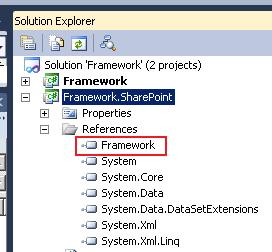
Let say there are 2 client systems: StaffSurvey and BillingPortal. Let say our Framework consists of 2 assemblies, Framework and Framework.SharePoint. The latter has a reference to the first (make sure they are using project reference). Below is the structure of the Framework solution in Visual Studio:
Structure of Framework solution

In this solution we will setup 2 configurations using Visual Studio’s Configuration Manager. One configuration will compile the DLLs in the solution as Framework.StaffSurvey.dll and Framework.SharePoint.StaffSurvey.dll. The other will compile them as Framework.BillingPortal.dll and Framework.SharePoint.BillingPortal.dll.

Create 2 new configurations, call them StaffSurvey and BillingPortal. You can base them on the Debug configuration. The result should look like below:
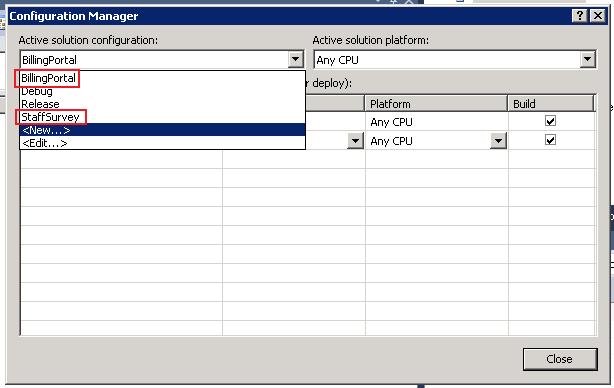
Add 2 new configurations

Add 2 new configurations

Next, in Visual Studio, in the Solution Explorer, right click on the Framework project and choose Unload Project. Right click on the Framework project again and choose to edit the Framework.csproj file.

In the csproj file (XML), you should see 5 child <PropertyGroup> elements underneath the root <Project> element, similar to below:

<PropertyGroup>
<PropertyGroup Condition=" '$(Configuration)|$(Platform)' == 'Debug|AnyCPU' ">
<PropertyGroup Condition=" '$(Configuration)|$(Platform)' == 'Release|AnyCPU' ">
<PropertyGroup Condition=" '$(Configuration)|$(Platform)' == 'StaffSurvey|AnyCPU' ">
<PropertyGroup Condition=" '$(Configuration)|$(Platform)' == 'BillingPortal|AnyCPU' ">

The first PropertyGroup element (the one without the Condition attribute) contains default settings for all configurations in our solution. The other 4 PropertyGroup are for the 4 configurations we have defined in our solution (Debug, Release, StaffSurvey, BillingPortal). The settings contain in these 4 PropertyGroup are used to overwrite the default settings defined in the first PropertyGroup element.

Underneath the first <PropertyGroup> element, locate the child element  <AssemblyName>Framework</AssemblyName>. Copy this element and paste it underneath the <PropertyGroup> for the StaffSurvey configuration. Change the Framework value to Framework.StaffSurvey. The result should look like below: 

<PropertyGroup Condition="'$(Configuration)|$(Platform)' == 'StaffSurvey|AnyCPU'">
	<AssemblyName>Framework.StaffSurvey</AssemblyName>

As you may have guessed, this setting makes VS produces the assembly as Framework.StaffSurvey.dll when the StaffSurvey configuration is selected. Do the same thing for the BillingPortal configuration. Save the csproj file and right click the Framework project in the Solution Explorer and choose to Reload Project. Repeat these steps for the Framework.SharePoint project.

Now, when you build the solution using the Debug/Release configurations, the dlls will be produced as Framework.dll and Framework.SharePoint.dll as normal. Under the StaffSurvey/BillingPortal configurations, the dlls will be produced as Framework.StaffSurvey.dll and Framework.SharePoint.StaffSurvey.dll.

In the client system, e.g. StaffSurvey, create a folder call BuildDependency. Copy the Framework.StaffSurvey.dll and Framework.SharePoint.StaffSurvey.dll to this folder. When adding reference to the Framework libraries for the StaffSurvey solution, select only the Framework libraries in this BuildDependency folder. 

Next, setup the branches in TFS for the Framework solution as shown below:
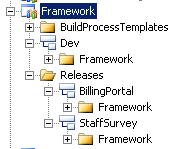
Branches for the Framework solution

Branches for the Framework solution

The Dev branch is where most of the development for the Framework will occur. The release branches are used to track the Framework versions that were actually released to each of the client system.

To make a release of the Framework to a particular client system, you should follow these steps:

  1. In the Dev branch, build and test the Framework using the Debug configuration.
  2. Merge the Dev branch to the Release branch for the client system that you want to perform the release for (e.g. Releases\StaffSurvey).
  3. In the Releases\StaffSurvey branch, build and test the Framework using the Debug configuration (to make sure the merge did not introduce any bugs).
  4. In the Releases\StaffSurvey branch, build the Framework using the StaffSurvey configuration.
  5. Copy the output dlls from the bin\StaffSurvey folder to the BuildDependency folder of the StaffSurvey solution.
  6. Build and test the StaffSurvey solution.

With the above elements in place – a configuration for each client system and a branching strategy – you now can:

  1. Choose when to update the Framework for a client system by merging from the Dev branch to the appropriate Release branch.
  2. Isolate the Framework runtime code for different client systems. Changes to Framework.StaffSurvey.dll will not impact Framework.BillingPortal.dll for example.
  3. Yet, maintain virtually one source code for the Framework, i.e. the Dev branch.
  4. In exceptional cases, hot fixes can be applied to one Release branch (where the bug was found), then merge back into the Dev branch, then merge out into other Release branches.

Conclusion

You can achieve runtime isolation and source code manageability for Framework libraries in SharePoint by deploying Framework libraries using client system specific dll names (using the Configuration Manager in VS) and adopting a thoughtful branching/merging convention.

Posted in Practices, SharePoint | Leave a comment

Jazzing up your list in SharePoint 2010

In SP2010, out-of-the-box list views use the XsltListViewWebPart and this gives you a lot more flexibility in customising the look and feel of your list, for example you can apply Conditional Formatting to your list using SharePoint Designer. In this post I will go through the steps to do just this!

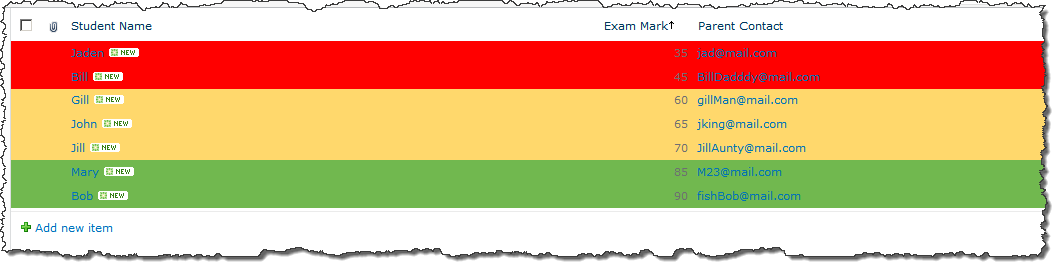
Say I have a list of students and exam marks. I want to create a view that highlights the students that are doing good and those that are not doing so well. The end product could look like the below, with rows highlighted red where the mark is less than or equal 50, yellow when the mark is between 51 and 74, and green when the mark is 75 or more.

Jazzed up list in SP2010

Jazzed up list in SP2010 with Conditional Formatting

To start, I create a normal custom list with the columns being Student Name (renamed from Title), Exam Mark (this is the main column that will drive the formatting), and Parent Contact.

I then clone the default All Items view as Highlighted View (so that I have something to go back to if things go really wrong).

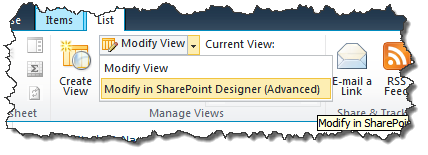
Now go to the list using the browser and go to the Highlighted View. On the ribbon, click on the List tab under the List Tools group. Choose to Modify view in SharePoint Designer as shown below:

Choose to modify view in SharePoint Designer

Choose to modify view in SharePoint Designer

This should launch SharePoint Designer and open up the view in Design mode (by default) as shown below.

The view in Design mode in SharePoint Designer

The view in Design mode in SharePoint Designer

Click on one of the cell on the view, e.g. the “Mary” cell as shown above. On the ribbon, under the List View Tools group, under the Options tab, click Conditional Formatting button, and click Format Row from the dropdown menu as shown below.

Select Format Row from the Conditional Formatting button

Select Format Row from the Conditional Formatting button

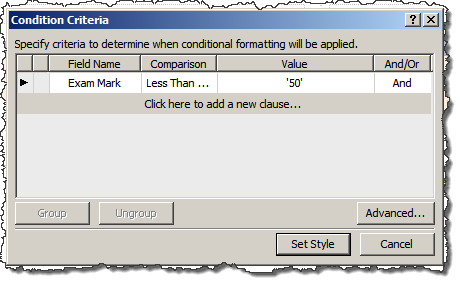
The Condition Criteria dialog box should appear. This is where you specify the condition that a style will be applied to. In the Field Name dropdown box select Exam Mark. In the Comparision dropdown box select Less Than or Equal. In Value type in 50. Your dialog box should look like the below:

Specify the condition that a style will be applied to

Specify the condition that a style will be applied to

Click Set Style in the dialog above. This will bring up the Modify Style dialog which allows you set the style that will be applied for the condition you specified in the last step. Set the background to red as shown below and click OK:

Set background to red

Set background to red

That’s it and you should see the Conditional Formatting reflected in the designer. Repeat these steps and specify additional Conditional Formatting rules for the yellow and green mark ranges. When you are done go ahead and save the view in SharePoint Designer. Go back to your browser and your view will now deliver a truly enhanced user experience!

The next challege is to “export” what we’ve just done and package that into a solution so that it can be deployed across different environments… but that’s for another post on another day :).

Posted in SharePoint, SharePoint Designer, XsltListViewWebPart | Leave a comment

Cannot make a cache safe URL for “1033/sp.js”, file not found

I was playing around with writing WebParts and using the SharePoint Javascript Client Object Model (COM – I wish people would standardise this acronym soon!). I added a ScriptLink to SP.js but got this error:

Cannot make a cache safe URL for “1033/sp.js”, file not found. Please verify that the file exists under the layouts directory.

My code inside the CreateChildControls() method is as below:

ScriptLink scriptLink = new ScriptLink()
                                        {
                                            ID = "WebPartClientConsumer",
                                            Name = "sp.js",
                                            LoadAfterUI = true
                                        };

this.Controls.Add(scriptLink);

It turns out that the problem is I didn’t specify Localizable = false for the ScriptLink object.

If the script link is localizable (default), then SP will look for it under the LAYOUTS\1033 folder (the ‘1033’ is determined by the language of your OS). If it is not localizable, then SP will look for it under the LAYOUTS folder, which is where it is installed by default.

Posted in Client Object Model, SharePoint | Leave a comment

Getting class name of variables in SharePoint’s Javascript client object model

Have you suffered from the pain of debugging SharePoint Client Object Model (COM) in Javascript? If you haven’t.. I think you soon will.

The SP COM introduces lots of classes in Javascript. Although you can add some basic intellisense for VS for the SP COM (see http://msdn.microsoft.com/en-us/library/ff798328.aspx), you will quickly find that it is no where near good enough.

I found that being able to get the class name of a variable in Javascript helps when debugging. In IE8, you can do this with: myObj.constructor.__typeName.

For the code below for example, doing alert(appointments.constructor.__typeName) would tell me that it is of type “SP.ListItemCollection”, and doing alert(appointmentEnumerator.constructor.__typeName) would tell me that it is of type “SP.ArrayListEnumerator”. This also works for simple types such as Number and string.

function getAppointmentOnSucceeded(sender, args)
{
	var appointmentEnumerator = appointments.getEnumerator();

	while (appointmentEnumerator.moveNext())
	{
		var appointment = appointmentEnumerator.get_current();
		$get("appointmentDetails").innerHTML += "</br><b>" + appointment.get_item('Title') + "</b><br/>" + appointment.get_item('Description');
	}
}
Posted in Client Object Model, SharePoint | Leave a comment

Content type visibility in document libraries

In a document library, once you have enabled content type management and added content types to the library, these content types are visible for the users in 3 places:

  • on the New toolbar menu,
  • when uploading a document
  • when editing a document’s properties

I was recently asked to tweak the visibility of content types in these 3 places, e.g. hide a content type from the New toolbar menu, but make it available for selection when uploading or editing a document’s properties.

There are 2 properties in SharePoint that affect the visibility of content types in these 3 places. (Well actually just 2 places – as the list of content types when uploading and when editing properties is the same – they are actually the same page). These are:

  • Visible on New Button (can be set through the UI – List’s Settings – screenshot below)
  • The Hidden property of the SPContentType object (can be set only through the object model)

The Visible on New Button (VNB) setting controls whether the content type appears on both the New AND Upload/Edit menu.

The Hidden property controls whether the content type appears on the New menu. It does not affect whether the content type appears on the Upload/Edit menu.

SharePoint does a logical AND operation on the 2 settings above to determine whether to show the content type. The table below explains this:

Visible on New Button is TRUE Hidden is TRUE Content type is ONLY visible on Upload/Edit properties
Visible on New Button is TRUE Hidden is FALSE Content type is visible on BOTH New menu and Upload/Edit properties
Visible on New Button is FALSE Hidden is TRUE Content type is hidden on BOTH New menu and Upload/Edit properties
Visible on New Button is FALSE Hidden is FALSE Content type is hidden on BOTH New menu and Upload/Edit properties


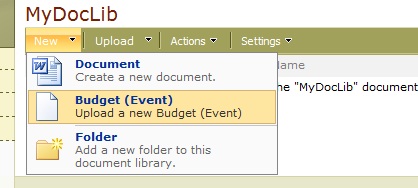
There is another twist: for a document library, if a content type is visible, but it’s document template is blank – you will get an option to upload, rather than to create new, under the New menu (as shown below).

Posted in Content Types, SharePoint | 2 Comments

How to export permission list for a group in SharePoint

When viewing a group in SharePoint, you can view a list of all permissions of that group across the site collection by going to Settings\View Group Permissions. Here is what that would look like:

Today a colleague wanted to export this list to Excel to facilitate some testing. The problem is the page that comes up when you click Settings\View Group Permissions is a dialog and you can’t right click on it, or even select and copy/paste.

The trick is browse directly to the URL that serves the dialog above. Here are the steps:

  1. Get the group ID. The URL when viewing a group is of the format http://yourServer/_layouts/people.aspx?MembershipGroupId=25. 25 is the group ID.
  2. Browse to this page http://yourServer/_layouts/viewgrouppermissions.aspx?ID=25, and change the ID to the ID of the group you want to view.
  3. On the page that comes up, right click on the table and choose Export to Microsoft Excel (or whatever else you fancy).
Posted in SharePoint | 4 Comments