Solving SharePoint 2013 incoming mails stuck in Drop folder

I was setting up Incoming Mails for SharePoint 2013 and like many people on Google, my mails were delivered to the Drop folder and were stuck there. I have solved this and have gained some insights into how Incoming Mails should be configured. This post captures these learnings.

Please note this is for SharePoint 2013 only.

1. My topology and Incoming Mails configuration

In the end the problem was because of a misconfiguration that was not appropriate for my topology. I will therefore first describe my topology and the original configuration.

I have a 4-servers farm with 2 WFEs and 2 Apps servers. The SharePoint Incoming Mails service is provisioned on both Apps servers. One of the Apps servers runs the Windows SMTP Service.

In Central Admin I configured Incoming Mails using the Automatic mode and specified to use Directory Management Service.

2. High level overview of how Incoming Mails works

This is necessary to understand the problem. If configured correctly, then when a mail is sent to Exchange, Exchange routes the mail to the SMTP Server that is specified in Central Admin’s Incoming Mails configuration. This ends up in the Drop folder of the SMTP Service on this server. A SharePoint timer job, namely Microsoft SharePoint Foundation Incoming E-Mail, monitors this folder and processes mails that are delivered to this folder. This timer job is responsible for creating items in your lists/libraries and removing processed mails from the Drop folder. This timer job is scheduled on all servers where the SharePoint Incoming Mails service is provisioned. It is scheduled to run every 1 minute by default.

3. The problem, root cause and the fix

As mails were being delivered to the Drop folder, we can exclude Exchange from the problem, and isolate it down to the SharePoint timer job. In my case, the root problem is because the timer job was not able to access the Drop folder to process delivered mails.

Recall that I have the SharePoint Incoming Mails service provisioned on 2 Apps servers (server A and B). This means that the timer job is scheduled to run on both of these servers. Recall that I also have the Windows SMTP service running on 1 Apps server (server A). This means the Drop folder is on server A.

In Central Admin I also configured Incoming Mails using Automatic Mode. This means SharePoint uses the Drop folder as specified by the Windows SMTP service. By default this is c:\inetpub\mailroot\Drop.

The root cause is because when the timer job is running on server B, it is unable to access the Drop folder on server A. This is probably because it attempts to access it using c:\inetpub\mailroot\Drop, which does not exist on server B.

I created a network share to the Drop folder on server A, switched Incoming Mails to Advanced Mode in Central Admin, and entered the share path (e.g. \\serverA\Drop) for the E-Mail drop folder setting and Incoming Mails immediately worked for me.

Be aware that you will need to grant appropriate permissions to the network share for the Central Admin’s app pool account, and the content web application app pool accounts as per the MSDN article on setting up Incoming Mails.

4. Understanding more about Incoming Mails

OK, so the timer job on server B could not access the Drop folder, but what about the timer job on server A? If the timer jobs are scheduled every 1 minute, the mails shouldn’t get stuck for a long time, right?

Well, this is where things got interesting.

By chance I noticed that even though the timer job is scheduled on 2 servers, it was only executing on server B as shown below.

1 Jobs

The job on server A would be rescheduled every 1 minute, but it’d never execute.

I found this post http://www.sharepoint2013.me/Blog/Post/161/Incoming-email-service-on-SharePoint-2013-server-farm-, which explains what’s going on. As a summary, while the timer job can be defined on multiple servers (i.e., on those servers where the Microsoft SharePoint Foundation Incoming E-Mail service is provisioned), it will only execute on 1 particular server. The server that it will execute on seems to be internally set when the Timer Service Recycle job (of the Microsoft SharePoint Foundation Timer service) is executed.

I tested this and it seems to be true. I ran the Timer Service Recycle job and the Microsoft SharePoint Foundation Incoming E-Mail job started executing on the other server (server A) and stopped executing on server B. I do not know how SharePoint picks which server to run the Incoming E-Mail job on.

The Timer Service Recycle job performs a graceful restart of the Timer service. You can read more about it here: http://blogs.msdn.com/b/besidethepoint/archive/2012/01/10/the-timer-recycle-job-job-timer-recycle.aspx. The default schedule for this job is 6:00am daily. It is however disabled by default on my server.

5. Summary and Take Away

So when incoming mails are stuck in the Drop folder, it is likely because they are not being processed by the Incoming E-Mail timer job. In a multi-servers farm, it is best to create a network share to the Drop folder and use this network share in configuring Incoming Mails in Central Admin. This helps to ensure that the Incoming E-Mail timer job can access the Drop location regardless of where it is being run from in the farm. Ensure you have granted permissions to the network share as per the MSDN article on configuring Incoming Mails.

Posted in Incoming Mails, SharePoint 2013 | 11 Comments

Making sub-sites inherit managed navigation settings of root site in SharePoint 2013

In SharePoint 2013 when creating sub-sites (at least through the UI), and you set the new sub-site to inherit the global nav from the parent site, and the parent site uses managed navigation, you will find that the global nav of the sub-site does not correctly inherit all the managed navigation links from the parent site.

This has been reported by the links below:

http://blog.jussipalo.com/2013/03/sharepoint-2013-managed-navigation-not_12.html
http://social.msdn.microsoft.com/Forums/en-US/sharepointgeneral/thread/87a00e4f-59eb-4e36-a7f0-6535bb1f748a

You can fix this by re-applying the navigation settings of the new sub-site after it has been created (as discussed in the first link).

However, when you are provisioning many sites, you may want to fix this by code. Put the code below in a feature receiver and activate the feature for each sub-site:

var web = properties.Feature.Parent as SPWeb;
var rootWeb = web.Site.RootWeb;

var rootWebNavSettings = new WebNavigationSettings(rootWeb);
var thisWebNavSettings = new WebNavigationSettings(web);

thisWebNavSettings.GlobalNavigation.Source = StandardNavigationSource.InheritFromParentWeb;
thisWebNavSettings.GlobalNavigation.TermStoreId = rootWebNavSettings.GlobalNavigation.TermStoreId;
thisWebNavSettings.GlobalNavigation.TermSetId = rootWebNavSettings.GlobalNavigation.TermSetId;
thisWebNavSettings.Update();

The WebNavigationSettings class is defined in the Microsoft.SharePoint.Publishing.Navigation namespace of the Microsoft.SharePoint.Publishing.dll.

Posted in Managed Navigation, SharePoint 2013 | 2 Comments

Strange PowerShell behaviour when getting list content type’s ID

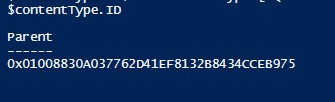
For some reasons when retrieving the ID of a content type at the list level in PowerShell, the ID of the parent content type (i.e. the one at the site level) is always returned.

Below is my script:

$web = Get-SPWeb http://myServer
$list = $web.Lists.TryGetList("My List")
$contentType = $list.ContentTypes["My Content Type"]
$contentType.ID

Running the above script would give me:

1 Result

Notice the property being displayed is Parent. I have no idea why it is doing this.

To get around this, I get the content type ID from its SchemaXml property by changing the script to be:

$web = Get-SPWeb http://myServer
$list = $web.Lists.TryGetList("My List")
$contentType = $list.ContentTypes["My Content Type"]
[xml] $contentTypeXml = $contentType.SchemaXml

$contentTypeXml.ContentType.ID

This then gives the expected result as below:

2 Updated Result

This behaviour was observed on SP2013 without any PU or CU applied.

Posted in PowerShell, SharePoint, SharePoint 2013 | 1 Comment

Differences between Enterprise Wiki and Wiki Page Library in SharePoint 2013

In SP2013 you can create a Wiki site/sub-site (using the Enterprise Wiki site template) or create a Wiki Page Library in an existing site. What are the functionality differences between these two options? Below is what I have found so far.

1. Page Layout vs Text Layout

In Enterprise Wiki you get Page Layout, whereas in Wiki Page Library you get Text Layout.

Enterprise Wiki uses the Pages library, so you get all the functionality you would with normal publishing pages. OOTB you get two page layouts, Basic Page and Basic Project Page. In terms of editable content, these two page layouts are very similar. They both contain a single rich text area on the page. You therefore virtually have no choice in how to layout your content OOTB.

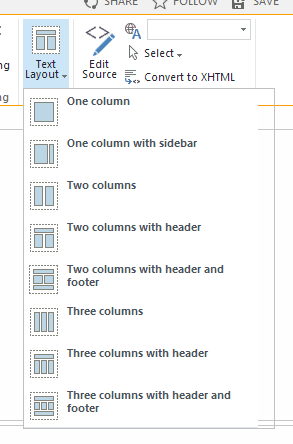
With Wiki Page Library you get Text Layout in lieu of Page Layout. Text Layout is great because it allows you to very easily change the layout of your page using several pre-defined layouts, as shown below.

1 Text Layout

There is a catch though. While adding custom Page Layout is a common thing for a developer, I have no idea how to add more layout options to Text Layout. Also, if you have additional metadata fields against the Wiki page, you can add these to the Page Layout. I am not sure how (or if it’s even possible) to do this with Text Layout.

So within this particular area, if you want to be able to change your layout OOTB without custom dev, then use Wiki Page Library. Using the Enterprise Wiki and Page Layout however will give you more flexibility in the long run.

2. Content Type

Content Type is disabled on the Wiki Page Library and you cannot enable it (using the SharePoint UI anyway). Enterprise Wiki uses the Pages library so you can add additional content types (and associated page layouts) to the library if required.

If you want better control over your information then use the Enterprise Wiki.

3. Metadata

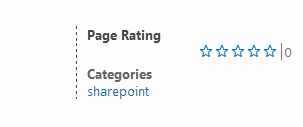
With Enterprise Wiki you get Categories and Rating OOTB. These are placed on the OOTB page layouts, as shown below.

2 Rating

You don’t get these with Wiki Page Library. While you can manually add metadata to Wiki Page Library, you can’t add the fields to the text layouts. This means users would have to edit the content of the page, then separately edit the properties of the page to enter metadata, which is not good for encouraging metadata entry. You can enable rating for the Wiki Page Library, but again, the only way for users to rate a page is to go to the View All Pages view of the library.

So if you are planning to have metadata on Wiki pages, then use the Enterprise Wiki.

4. Other Differences

Other differences include:

  • Reusable Content: you get this in Enterprise Wiki only.
  • Alert Me: for some reasons you don’t get this with Wiki Page Library. You get it with Enterprise Wiki only. Update 27/02/2014: As Livo pointed out in the comments, Alert Me is there for Wiki Page library. My testing shows that this is correct, but only if Outgoing Mail is configured for the web app.
  • Add a page (from gear button (Site Settings)): You don’t get this with Wiki Page Library. This means it is pretty hard for users to create pages independent of links.
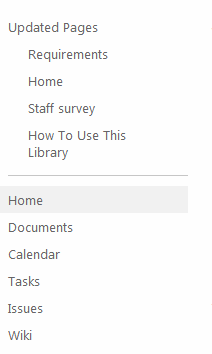
  • Updated Pages on left nav: You get this with Wiki Page Library only. This guy appears on the left nav of the Wiki pages and list recently updated pages, as shown below.

3 Updated Pages

5. Conclusion

So, in the end which option should you choose? If you want/need maximum flexibility (now and future-proofing) and can afford custom dev, then go with Enterprise Wiki. If you cannot afford custom dev, then Wiki Page Library seems to offer more functionality OOTB.

Let me know if you have found other differences between these two guys.

Posted in SharePoint 2013, Uncategorized, Wiki | 32 Comments

Visitors can’t access ribbon on publishing pages in SharePoint 2013

OOTB Visitors with Read permission can’t access the ribbon on publishing pages in SP2013. This is true for March 2013 Public Update. This is bad because some of the functionality that are useful for Visitors can only be accessed from the ribbon, e.g. Page History, Alert Me, Tags & Notes.

On publishing pages (i.e. pages from the Pages library), Visitors do not see the gear button (Site Settings) in the top right. Therefore, even if you set Yes to Make “Show Ribbon” and “Hide Ribbon” commands available in the site’s settings, this does not help Visitor users as they can’t access the Show Ribbon/Hide Ribbon commands anyway (as when enabled they are shown when you click the gear button).

You can solve this by tweaking the permission for Visitors. The ribbon visibility seems to be dependent on the visibility of the gear button. To make the gear button visible for Visitors, edit the Read permission levels. Grant the “Manage Personal Views  –  Create, change, and delete personal views of lists” permission to the Read permission levels. This to me is an acceptable compromise.

Now Visitors will see the gear button. However, they may not yet see the ribbon. To fix this, go to the root site as an Admin user and perform the following steps:

  1. Set Yes to Make “Show Ribbon” and “Hide Ribbon” commands available (in Site Settings \ Navigation)
  2. Go back to the main page of the site, then choose Show Ribbon from the gear button. Visitors should now see the ribbon.
  3. If desired, set Make “Show Ribbon” and “Hide Ribbon” commands available back to No

Note that this issue only occurs on publishing pages (i.e. pages in the Pages library). Visitors can see the gear button and the ribbon fine on pages in Wiki libraries and Site Pages libraries.

Posted in SharePoint 2013 | 2 Comments

MS bug: Error when creating new Search Navigation links in SharePoint 2013

In SharePoint 2013 you can create new Search Navigation links. This controls the options you get in the search dropdown box. OOTB, the options are Everything, People, Conversations and Video.

Let say you have a Portal site collection (http://portal), and a Search Centre site collection (http://portal/sites/search). If you want to configure Search Navigation links in your Portal site, and reuse the results pages in the Search Centre, you could use the following as the URL for one of your Search Navigation links: http://portal/sites/search/Pages/results.aspx. When you try to apply the setting however, you will get an error. In the ULS you will see that the error is “Cannot open “/sites/search/Pages/results.aspx”: no such file or folder.” The same error occurs if you enter an absolute URL (http://portal/sites/search/Pages/results.aspx), or a server-relative one (/sites/search/Pages/results.aspx).

So how do you overcome this? Well, the trick is to enter a URL that SharePoint will accept, then edit the link, and change the URL to what you want.

So when creating a new link, enter an absolute URL that is EXTERNAL to SharePoint, e.g. just enter http://www.google.com. Go ahead and apply the setting (that is click OK on the Search Settings page). Because the URL is external, SharePoint will not validate the link. Next, go back into the Search Settings page and edit the link. This time change the URL of the link to what you want. Go ahead and apply the setting again. This time SharePoint will happily accept it and your Search Navigation link will work as expected.

This is clearly a MS bug. I tested it on March 2013 Public Update and it is still there.

Posted in SharePoint 2013, Uncategorized | 4 Comments

Enable email notifications for Tasks list in SharePoint 2013

———————–

Update: I have not tested this myself, but apparently the option now appears on the UI with April 2013 CU: http://social.technet.microsoft.com/Forums/sharepoint/en-US/8ee6bd15-6aae-43c1-a853-66ae6523adbc/assigned-to-email-alert-issue?forum=sharepointgeneral.

Update: Despite the link above, I tested this on SP1 with June 2014 CU and still could not find the option on the UI.

———————–

In SharePoint 2013 you will find that the option to enable email notification for Tasks list is no longer there. It used to be under List Settings > Advanced Settings > Send e-mail when ownership is assigned? (Yes/No). It is still there for Issues list in SharePoint 2013 however.

The good news is you can still enable it for Tasks list in SharePoint 2013, and it still works. The only thing is you’ll need to use PowerShell :). Use the script below to turn on email notification for a specific list:

Add-PSSnapin Microsoft.SharePoint.Powershell

$web = Get-SPWeb "http://myServer/myWeb"
$list = $web.Lists.TryGetList("Tasks")

$list.EnableAssignToEmail = $true
$list.Update()

Once email notification is enabled for the Tasks list, you will get the good old “The content of this item will be sent as an e-mail message to the person or group assigned to the item.” message when creating or editing an item in the list.

I’m guessing this is a MS bug. I have tested this on the March 2013 Public Update and the UI option for Tasks list is still not there.

Note: Before you run this code, make sure that you have configured outgoing mail for the web application though. The option to enable email notification for Issues list does not appear in the UI until this is configured. So it’s best to configure this before running the PowerShell code for Tasks list.

Posted in SharePoint 2013 | 59 Comments

AppFabric Distributed Cache keeps crashing in SharePoint 2013 – Fixed!

I rebuilt the farm and suddenly find my brand new AppFabric (aka Distributed Cache service) crashing continuously. I restarted the service in Services.msc and after a few minutes it would stop again. Event Viewer shows the two errors below every time the service crashes. The source of the first is Application Error, and the second is .NET Runtime.

Faulting application name: DistributedCacheService.exe, version: 1.0.4632.0, time stamp: 0x4eafeccf
Faulting module name: KERNELBASE.dll, version: 6.1.7601.17932, time stamp: 0x503285c2
Exception code: 0xe0434352
Fault offset: 0x000000000000caed
Faulting process id: 0x1888
Faulting application start time: 0x01ce23ce18ce0f9e
Faulting application path: c:\Program Files\AppFabric 1.1 for Windows Server\DistributedCacheService.exe
Faulting module path: C:\Windows\system32\KERNELBASE.dll
Report Id: c7ee39fc-8fc1-11e2-9030-00155d1f6002

and

Application: DistributedCacheService.exe
Framework Version: v4.0.30319
Description: The process was terminated due to an unhandled exception.
Exception Info: Microsoft.ApplicationServer.Caching.DataCacheException
Stack:
at Microsoft.ApplicationServer.Caching.VelocityWindowsService.StartServiceCallback(System.Object)
at System.Threading.ExecutionContext.RunInternal(System.Threading.ExecutionContext, System.Threading.ContextCallback, System.Object, Boolean)
at System.Threading.ExecutionContext.Run(System.Threading.ExecutionContext, System.Threading.ContextCallback, System.Object, Boolean)
at System.Threading.QueueUserWorkItemCallback.System.Threading.IThreadPoolWorkItem.ExecuteWorkItem()
at System.Threading.ThreadPoolWorkQueue.Dispatch()

At the SP2013 Management Shell, run Use-CacheCluster then Get-CacheHost and the Service Status of the cache host shows as UNKNOWN.

In my case, I fixed this by adding the SharePoint App Pool account to the WindowsFabricAllowedUsers group on the server. The AppFabric service then stopped crashing!

Posted in AppFabric, Distributed Cache, SharePoint 2013 | 8 Comments

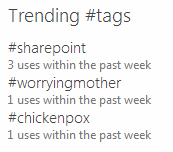
Using Trending #Tags web part outside of MySites

By default the Trending #tags web part is added to your Newsfeed in MySites.

1 Web part

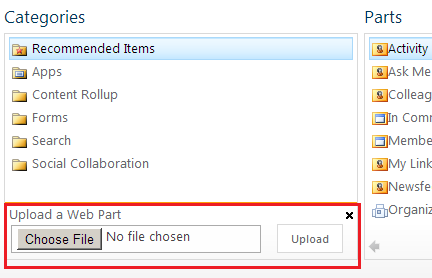
To use this web part outside of MySites you will first have to export it from the MySites’s landing page (e.g. http://server/my/default.aspx) as a DWP, then upload it to the page where you want to use it using the “Upload a Web Part” feature as shown below:

2 Upload

(I could not find the feature that would provision this web part – hence this export/upload workaround.)

The next thing you have to do is activate a feature to provision a required Display Template. The feature to activate is “My Site Host“. This is a hidden feature scoped at the Site Collection level. The feature ID is 49571CD1-B6A1-43a3-BF75-955ACC79C8D8. The feature folder under SharePointRoot is MySiteHost.

Failing to activate the feature above will cause the web part to error with the message below:

Display Error: The display template had an error. You can correct it by fixing the template or by changing the display template used in either the Web Part properties or Result Types.

Template ‘~sitecollection/_catalogs/masterpage/Display Templates/System/Control_TagFeed.js’ not found or has syntax errors. (LoadTemplate: )


Posted in SharePoint 2013, Social | 19 Comments