Tip for deploying workflow template with InfoPath task form

Maybe because I’m a newbie, but I ran into a lot of problem trying to deploy a workflow template with an InfoPath task form. The trick is in your feature receiver and your feature properties (in the XML definition). The best tip I can give on this is to copy the out-of-the-box ExpirationWorkflow feature, including:

  1. Use the same feature receiver (i.e. the Microsoft one)
  2. Include the same feature Property (i.e. RegisterForms and GloballyAvailable)
  3. Mirror the same file/folder structure for your task form

It was relatively painless once I started copying this out-of-the-box feature.

Posted in SharePoint, SharePoint 2010, Workflow | Leave a comment

SharePoint Evil #4: Document Information Panel always defaults to first content type in the library

A SharePoint Evil is an issue/error that is so ambiguous and misleading that Google will shows 50 hits, with 10 different suggested solutions, and none of them work for your particular case. (So the described below may not work for you – but I hope it will).

Note: The particular root cause described below is applicable to SP2007 only. SP2010 seems to have extra smart that will eliminate this particular root cause.

Symptom: You have more than 1 content type specified for a document library. You specified an Office 2007/2010 file as the document template for these content types. When you create a new item from 1 of these content types (via the New button of the document library), the Office app opens and the Document Information Panel (DIP) is displayed. It however always defaults to the first content type in the library, and not the one you actually selected to create a new document.

Cause: In my case it was because the Office document template associated with the content type had an incorrect reference to the content type stored internally within the Office file itself. The Office app seems to be using this reference to pick the content type to load the DIP and default to.

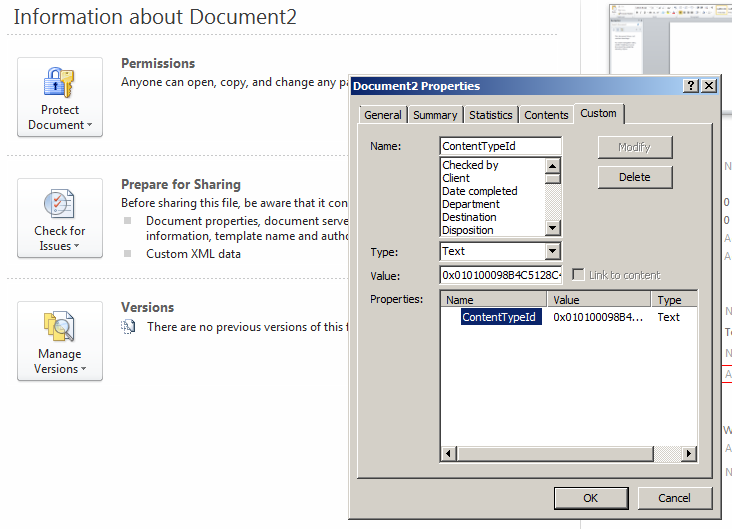
So where is this reference stored internally within the Office document? It is a custom property call ContentTypeId for Office 2007/2010 and ContentType for Office 2003:

Document Property

If a content type could not be resolved from the value of this property, then the DIP defaults to the first content type in the library.

The document template for a content type at site collection level however, may not have this property at all – and in fact I think this is a better way to manage it. In this case, when the site collection content type is added to a library, the document template of the child content type is automatically updated with the ContentTypeId property with the right value.

If the document template of a content type at site collection level already has this property, but a content type could not be resolved from it, then when this content type is added to a library, the document template of the child content type will not be updated. It will keep the invalid value from the content type at site collection level – and this is how you end up with the problem.

This means when you upload a new document template for a content type at site collection level, you should ensure that it does not have the ContentTypeId property
Or at least ensure that the value of the property matches that of the corresponding content type.

[Can you upload a document template to a content type at the library level without the ContentTypeId property? Not sure – needs investigation.]

So how can you fix this?

  1. Go to the content type at site collection level
  2. Edit the document template
  3. Delete the property and save the template
  4. Update the content type and push the change down to all inherited content types. (If you have customised the template of the inherited content types then you will need another solution :D).

What’s this about it’s not an issue in SP2010?

It appears that in SP2010 there is extra smart to automatically update the document template when you upload it to the content type at site collection level (and when you edit it too). It will automatically put in/update the property with the right value if the new/updated template does not have the property, or has the property but with an incorrect value for the corresponding content type.

Posted in Document Information Panel, SharePoint, SharePoint 2010, SharePoint Evils | 7 Comments

SharePoint Evil #3: Can’t view BCS External List: Unable to display this Web Part. To troubleshoot the problem, open this Web page in a Microsoft SharePoint Foundation-compatible HTML editor such as Microsoft SharePoint Designer. If the problem persists, contact your Web server administrator.

A SharePoint Evil is an issue/error that is so ambiguous and misleading that Google will shows 50 hits, with 10 different suggested solutions, and none of them work for your particular case. (So the described below may not work for you – but I hope it will).

When viewing an External List you get the error message below:

Unable to display this Web Part. To troubleshoot the problem, open this Web page in a Microsoft SharePoint Foundation-compatible HTML editor such as Microsoft SharePoint Designer. If the problem persists, contact your Web server administrator.

Correlation ID:379c329f-ecab-47cc-8983-bc9fe94e55b6

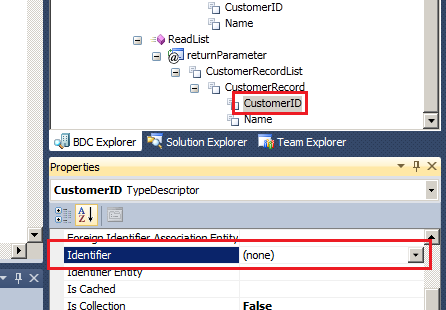
In my case it was because of an error in the TypeDescriptors of my entity’s methods. A TypeDescriptor of the returnParameter of the ReadList method was meant to map to the Identifier, but it was not. It was set to (none).

My entity looks like below, with the Identifier being CustomerID.

Entity Model

The returnParameter for my ReadList method looks like below.

Method Details

Setting the Identifier of the CustomerID TypeDescriptor and redeploying the external content type fixed the issue.

Update: You also get this error if the property names of the C# entity class do not match up to the name of the TypeDescriptors. So in the screenshot above, the C# entity class must have a property called CustomerID. If I named it ID for instance, then I will get this error.

Posted in BCS, SharePoint 2010, SharePoint Evils | 1 Comment

How to find ID of site column using the SharePoint UI

You can work out a number of things by looking at the various out-of-the-box URLs in SharePoint. For example, to work out the ID of a content type, go to the content type gallery, hover over a content type, and observe the URL. The content type ID is the last query string parameter as shown below.

Content type ID shown in the URL

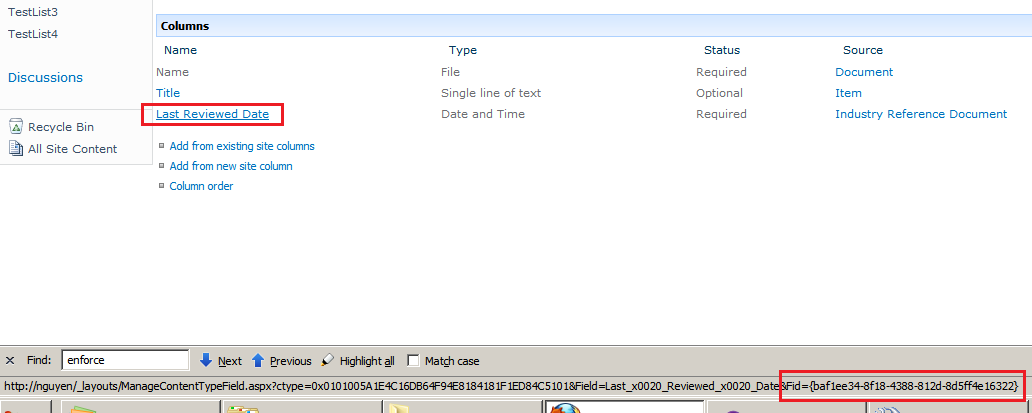
One way to work out the site column ID is to go to the setting of a content type where the site column is being used. Hover over the site column and the ID is shown in the URL as below.

Site column ID is shown in the URL

Going to the site column gallery won’t work as that will just give you the internal name of the site column/field.

Posted in SharePoint | Leave a comment

Can’t disable customErrors in SharePoint

There are 3 setting changes you need to make to the SharePoint web.config to show the real error messages and call stack – rather than the out-of-the-box message that is often very vague and unhelpful for troubleshooting.

The other day I still couldn’t get it to show the real error message even though I have applied these settings. It turns out there are 2 different web.config:

  • Under C:\inetpub\wwwroot\wss\VirtualDirectories\80:  this web.config applies to the content pages in SharePoint.
  • Under [SharePointRoot]\TEMPLATE\LAYOUTS:  this web.config applies to the application pages in SharePoint, i.e. pages under the _layouts/ virtual parth.

The 3 setting changes you need to make are:

  • <customErrors mode=”On” />  –  change this to “Off”
  • <SafeMode MaxControls=”200″ CallStack=”false” …..>  –  change CallStack to “true”
  • <compilation batch=”false” debug=”false” optimizeCompilations=”true”>  –  change debug to “true”
Posted in SharePoint | Leave a comment

SharePoint Evil #2: The URL ‘[url]’ is invalid. It may refer to a nonexistent file or folder, or refer to a valid file or folder that is not in the current Web – The 2nd Scenario

A SharePoint Evil is an issue/error that is so ambiguous and misleading that Google will shows 50 hits, with 10 different suggested solutions, and none of them work for your particular case. (Eeerr.. so what’s described below may not work for you – but I hope it will).

I have experienced this evilness in 2 different scenarios. The 1st scenario is related to lookup columns and described here: https://bernado-nguyen-hoan.com/2011/03/22/sharepoint-evil-1-the-url-url-is-invalid-it-may-refer-to-a-nonexistent-file-or-folder-or-refer-to-a-valid-file-or-folder-that-is-not-in-the-current-web/

This will describe the 2nd scenario – which relates to duplicate ColName for fields on the list. Same as before you will get this error message when editing item properties:

The URL ‘[url]’ is invalid. It may refer to a nonexistent file or folder, or refer to a valid file or folder that is not in the current Web.

If you look in the ULS, you will see the error message above, and closely before/after it, you will see an error message relating to SQL like this:

Unexpected query execution failure, error code 8143. Additional error information from SQL Server is included below. “Parameter ‘@nvarchar1’ was supplied multiple times.” Query text (if available): “DECLARE @@S uniqueidentifier; DECLARE @@W uniqueidentifier; DECLARE @@DocId uniqueidentifier; DECLARE @@DoclibRowId int; DECLARE @@Level tinyint; DECLARE @@DocUIVersion int;DECLARE @@IsCurrentVersion bit; DECLARE @@iRet int; DECLARE @DN nvarchar(256); DECLARE @LN nvarchar(128); DECLARE @FU nvarchar(260); SET @DN=N’regions/emea/admin/docs/Funding Proposals 2008-09/WE’;SET @LN=N’WESTERN EUROPE – Post Management – Funding Request.doc’;SET @FU=N’regions/emea/admin/docs/Funding Proposals 2008-09/WE/WESTERN EUROPE – Post Management – Funding Request.doc’;SET @@S=’BC4E859F-0E05-4635-91A2-044BD335D7FE’;SET @@W=’78A13FD9-2BF8-4D97-9E70-990C0D5C4E42′;SET @@DocUIVersion = 512;BEGIN TRAN; IF @@iRet <> 0 GOTO done; SET @@Level =255; EXEC @@iRet = proc_UpdateDocument @@S, @@W, @DN, @LN, ?, ?,0,2538,0,25,268,NULL,’20110418 05:00:50′,0,0,1,1,54,0,2,0,-2,NULL,1,0,NULL,1,0,0,NULL,NULL,NULL,NULL,NULL,NULL,NULL,@@DocId OUTPUT, @@Level OUTPUT , @@DoclibRowId OUTPUT,? OUTPUT,? OUTPUT,? OUTPUT, ?,?; IF @@iRet <> 0 GOTO done;  EXEC proc_DirtyDependents @@S,1,@FU; EXEC @@iRet = proc_UpdateListItem @WebId=’78A13FD9-2BF8-4D97-9E70-990C0D5C4E42′,@SiteId=’BC4E859F-0E05-4635-91A2-044BD335D7FE’,@ListID=’8306140D-F4F6-44BB-AB04-C39EF33DD759′,@ItemId=@@DoclibRowId, @NewUIVersion = @@DocUIVersion OUTPUT,@RowOrdinal=0,@ReturnRowset=1,@Size=NULL,@tp_Version=4,@ItemName=N’WESTERN EUROPE – Post Management – Funding Request.doc’,@IsDocLib=1,@MajorVersionsLimit=0,@MajorMinorVersionsLimit=0,@UserId=54,@Level=@@Level, @TimeNow=’20110418 05:07:44′, @tp_ContentTypeId = ?,@nvarchar11=?,@nvarchar12=?,@nvarchar13=?,@nvarchar15=?,@nvarchar16=?,@nvarchar7=?,@nvarchar8=?,@nvarchar9=?,@ntext2=?,@int1=?,@tp_ContentType=?,@nvarchar1=?,@nvarchar2=?,@nvarchar3=?,@nvarchar4=?,@nvarchar5=?,@nvarchar6=?,@nvarchar17=?,@nvarchar18=?,@nvarchar1=?,@nvarchar2=?,@tp_ModerationStatus=?,@tp_ItemOrder ….

This is a pretty long and meaningless message – except for the part I’ve bolded: Parameter ‘@nvarchar1’ was supplied multiple times.

This means there are multiple fields in the list pointing to the same underlying DB column in the database.

So how could this have happened? In the list XML schema we defined all the fields for the list, e.g.:


<FieldID="{c29e077d-f466-4d8e-8bbe-72b66c5f205c}"Name="URL"SourceID="<a href="http://schemas.microsoft.com/sharepoint/v3%22StaticName=%22URL%22Group=%22Base">http://schemas.microsoft.com/sharepoint/v3"StaticName="URL"Group="Base</a> Columns"Type="URL"DisplayName="URL"Required="FALSE"Customization=""ColName="nvarchar1"RowOrdinal="0"ColName2="nvarchar2"RowOrdinal2="0"/>

The ColName attribute above should NOT be specified in the schema. You should let SharePoint decides which DB column to use.

If your schema has these attributes, it will still works when you initially deploy. The problem will come when the list has been in production for sometime, and users add/remove columns to the list using the UI, and you then add additional fields to the schema, and you specified the ColName to use, and unknowingly to you, one of those ColNames is already being used by the fields added by the user (through the UI).

Unfortunately, one of the common practices for SP developers is to add the field to the list using the SP UI, then use a tool such as SharePoint Manager to extract the XML and paste it into the schema they are coding. If you do it this way, ensure that you clear out the ColName attributes (and possibly others as well) that SP has put in on a deployed list.

Posted in SharePoint, SharePoint 2010, SharePoint Evils | 10 Comments

SharePoint Evil #1: The URL ‘[url]’ is invalid. It may refer to a nonexistent file or folder, or refer to a valid file or folder that is not in the current Web

I’m compiling a list of evil SharePoint errors: those errors that are so ambiguous and misleading that Google will shows 50 hits, with 10 different suggested solutions, and none of them work for your particular case.

Here is #1:

The URL ‘[url]’ is invalid. It may refer to a nonexistent file or folder, or refer to a valid file or folder that is not in the current Web. at Microsoft.SharePoint.Library.SPRequestInternalClass.PutFile(String bstrUrl, String bstrWebRelativeUrl, Object varFile, PutFileOpt PutFileOpt, String bstrCreatedBy, String bstrModifiedBy, Int32 iCreatedByID, Int32 iModifiedByID, Object varTimeCreated, Object varTimeLastModified, Object varProperties, String bstrCheckinComment, UInt32& pdwVirusCheckStatus, String& pVirusCheckMessage)
at Microsoft.SharePoint.Library.SPRequest.PutFile(String bstrUrl, String bstrWebRelativeUrl, Object varFile, PutFileOpt PutFileOpt, String bstrCreatedBy, String bstrModifiedBy, Int32 iCreatedByID, Int32 iModifiedByID, Object varTimeCreated, Object varTimeLastModified, Object varProperties, String bstrCheckinComment, UInt32& pdwVirusCheckStatus, String& pVirusCheckMessage)

I got this error when uploading documents to a document library. This error started to appear after I redeployed features to do with site columns and content types.

In my case the problem was a bad lookup site column definition that I deployed. This column was being included in 1 of the content types of the library, and hence becomes a column on the library, and hence caused the problem.

My site column (field) XML def looks like this:

<Field Type="Lookup" List="{8e980a24-9619-4969-9357-1eee9a1805c6}" ShowField="Title" DisplayName="Document Status" Required="FALSE" Group="All Documents" Description="Select the Archive option if this document is no longer Current and requires Archiving" ID="{cd94be8c-d754-4a6d-865d-7cb40375b11c}" SourceID="{36c01185-5d4b-4235-8f8b-59227bef7801}" StaticName="DocumentStatus" Name="DocumentStatus" WebId="{83255f8a-4772-4767-a261-376742747972}" Version="2">
	<Default>Current</Default>
</Field>

Notice the Default element. Because this is a lookup column, the Default value must have the format [id];#[value]. Changing the Default element to <Default>2;#Current</Default> fixes everything.

From my experience bad lookup column can lead to evil SharePoint errors. If you get desperate and nothing seems to work, I suggest remove all lookup columns from your content types and lists to isolate the problem.

Note: You can also get this error for completely different reasons. I have described the 2nd scenario here: https://bernado-nguyen-hoan.com/2011/04/18/sharepoint-evil-2-the-url-url-is-invalid-it-may-refer-to-a-nonexistent-file-or-folder-or-refer-to-a-valid-file-or-folder-that-is-not-in-the-current-web-the-2nd-scenario/

Posted in Content Types, Custom Fields, Lookup Columns, SharePoint, SharePoint Evils | 3 Comments

How to pass parameters/config data into custom Expiration formula

When developing a custom Expiration formula in SharePoint you may want to pass in parameters/config data for the formula, e.g. only expire items where field X has value Y.

The method that you needs to implement for your formula has the below signature:

public DateTime? ComputeExpireDate(SPListItem item, XmlNode parametersData)
{ }

You can pass params/config data to your formula via the parametersData parameter. This is a piece of XML that will have the following schema:

<formula id="[the ID you assigned to your custom formula]">
    <!--Your custom XML, e.g. the below -->
    <documentStatusFieldName>Status</documentStatusFieldName>
    <statusValueToExpire>Archived</statusValueToExpire>
</formula>

You can set the XML contained within parametersData when you enable the Expiration policy feature for a policy using code. The code below for example enables the Expiration policy feature for a content type. The code configures the Expiration policy feature to use a custom Expiration formula, and pass in XML to be used inside that formula (via parametersData).

//Needs using Microsoft.Office.RecordsManagement.InformationPolicy;

public void EnableExpirationForContentType(SPContentType contentType)
{
            const string EXPIRATION_POLICY_FEATURE_ID = "Microsoft.Office.RecordsManagement.PolicyFeatures.Expiration";

            //Ensure that a policy is defined for the content type
            Policy policy = Policy.GetPolicy(contentType);
            if (policy == null)
            {
                Policy.CreatePolicy(contentType, null);
                policy = Policy.GetPolicy(contentType);
            }

            //Always overwrite any existing Expiration setting for the policy (i.e. delete if exists)
            if (policy.Items[EXPIRATION_POLICY_FEATURE_ID] != null)
            {
                policy.Items.Delete(EXPIRATION_POLICY_FEATURE_ID);
            }

            //The id attribute must points to an Expiration formula you have deployed to the server
            string policyFeatureXml =
@”<data>
    <formula id=”"MyCustomExpirationFormula”">
        <!—From here on is your custom XML—>
        <documentStatusFieldName>DocumentStatus</documentStatusFieldName>
        <documentStatusToExpire>Archived</documentStatusToExpire>
    </formula>
    <action type="workflow" id="[guid of a workflow that has been associated with the content type]" />
</data>";

            //Enable the Expiration policy feature
            policy.Items.Add(EXPIRATION_POLICY_FEATURE_ID, policyFeatureXml);
}

Note the id attribute in the XML must point to an Expiration formula you have deployed to the server. Follow this tutorial for how to develop, deploy and debug a custom Expiration formula: http://blah.winsmarts.com/2008-10-Authoring_custom_expiration_policies_and_actions_in_SharePoint_2007.aspx.

Posted in Information Management Policy, SharePoint | 2 Comments

Where is that damn FormServerTemplates web folder?!?!

I am starting out on creating and deploying InfoPath forms to SharePoint 2010. I search around on the web and they all talk about the FormServerTemplates web folder or the Form Templates library, as this is where the form should be deployed to.

I however could not find this folder or library on my SharePoint site – Google wasn’t telling me where it is either. It turns out I don’t have it because I chose the “Blank Site” template when creating my site. I activated the site collection feature “SharePoint Server Enterprise Site Collection features” and it turns up!

Took me 1 hour of research and a lot of frustration to resolve this so it must be worth posting about!! 🙂

Posted in InfoPath, SharePoint | 1 Comment

How to “unexpire” an item so that it will be processed again by the Expiration Information Management Policy

In SharePoint, when an Information Management Policy is executed on an item and Expiration is enabled, and that item is deemed to be expired, then the item will not be evaluated for Expiration again at the next evaluation time.

When an item is expired, SharePoint sets a value to the following fields of the item:

_dlc_Exempt – This is set to 1

_dlc_ExpireDateSaved – A timestamp – appears to be when the item was expired

There is also the field _dlc_ExpireDate, but this does not seem to be set.

To “unexpire” an item, so that it will be processed again by the next Expiration evaluation, clear out the value of the above fields.

Posted in Information Management Policy, SharePoint, SharePoint 2010 | 6 Comments