Getting formatted value/label for OptionSetValue in early-binding

In the CRM SDK, when you retrieve the value of an Option Set attribute for an entity, only the integer value is returned. This is true for both early and late binding.

To retrieve the formatted value, i.e. the corresponding string label for the integer value, you would need to use the FormattedValues collection of the entity. For example, if we wanted to get the Preferred Contact Method for an account, this would look like this:

string preferredContactMethodLabel = entity.FormattedValues["preferredcontactmethodcode"];

This approach works for both early and late binding. However, you need to use the attribute’s logical name as a string, which defeats the purpose of early binding.

——————–

Update 17/09/2014: Be aware that in some cases the FormattedValues collection is not populated for the entity, for example for the Target entity of an Update plugin. This is true even if the Option Set field is one of the fields being updated. I have tested this with SP1 installed. The code below has been updated to handle this by returning an empty string. Under these scenarios, you’d need to retrieve the metadata of the field to retrieve the corresponding label.

——————–

To overcome this, I have developed an extension method on the Entity class that allows you to retrieve the formatted value of an Option Set attribute using a lambda. You’d use it like this:

string preferredContactMethodLabel = entity.GetFormattedValue(() => entity.PreferredContactMethodCode);

Just like early binding, the benefit of using a lambda is compiler checking. The lambda is also strongly typed to OptionSetValue, which means doing something like entity.GetOptionSetFormattedValue(() => entity.Name) would result in a compiler error.

public static class EntityExtension
	{
		public static string GetFormattedValue(this Entity entity, Expression<Func<OptionSetValue>> optionSetValueExpression)
		{
			Func<OptionSetValue> optionSetValueFunc = optionSetValueExpression.Compile();
			OptionSetValue optionSetValue = optionSetValueFunc();

			if (optionSetValue != null)
			{
				var optionSetAttributeName = entity.GetOptionSetAttributeName(optionSetValueExpression);
				return entity.FormattedValues.ContainsKey(optionSetAttributeName) ?
					entity.FormattedValues[optionSetAttributeName] : String.Empty;
			}
			return null;
		}

		public static string GetOptionSetAttributeName(this Entity entity, Expression<Func<OptionSetValue>> optionSetValueExpression)
		{
			string expressionString = optionSetValueExpression.ToString();
			int lastDotIndex = expressionString.LastIndexOf('.');

			string attributeName = lastDotIndex == -1 ? expressionString : expressionString.Substring(lastDotIndex + 1);
			return attributeName.ToLower();
		}
	}

This approach works base on the convention that the property names of the generated early binding types are the schema names of the entity attributes. Using Expression<Func> allows us to pass and perform string manipulation/interrogation on a lambda that is typed to OptionSetValue.

If the expression () => entity.PreferredContactMethodCode was passed, then optionSetValueExpression.ToString() would give the string below (Harness.Program is my test harness class), which allows us to extract the name of the attribute.

() => value(Harness.Program+<>c__DisplayClass0).entity.PreferredContactMethodCode

So there you have it, with a few simple extension methods you can improve your code quality, reduce chance of error, and keep your early-binding zen ;).
Posted in CRM | Leave a comment

“Input string was not in a correct format” error with People Picker and custom claim provider

In SharePoint 2013 I implemented a custom claim provider with search and resolve functionality and everything appeared to work fine. I was able to search and resolve users, grant them permissions to the site, and they were able to login successfully. Everything was good until a user reported a problem with the People Picker. When the user creates a task (in the OOTB Task list), and picks a user for the Assigned To field and save the item, they get the error message “Input string was not in a correct format” against the Assigned To field.

It turns out that this was because I was populating the PickerEntity objects with inappropriate values, namely UserId.

When implementing custom claim providers, you return search and resolve results to the People Picker by creating PickerEntity objects. This class has a property, namely EntityData, which is a Hashtable of additional information that you can populate for the particular user.

Typically you set a property in the EntityData table using a member of the PeopleEditorEntityDataKeys class, as shown below.

entity.EntityData[PeopleEditorEntityDataKeys.Email] = "user@test.com";
entity.EntityData[PeopleEditorEntityDataKeys.PrincipalType] = SPPrincipalType.User.ToString();

One of the members of the PeopleEditorEntityDataKeys class is UserId. I was setting this key to the login name for my user – and this is what caused the problem.

This key should be set to an integer, and should be the SPUser.ID property of the user – which means you typically would not set this key in a custom claim provider. I removed this key from the EntityData table for my users and the issue was resolved.

Other interesting observations

When you select a user, e.g. for the Assigned To field in this instance, and save the list item (or grant permission to the user), that user is created in the User Information List for the site collection if it doesn’t already exist (this list can be found at http://server/site/_catalogs/users). Some, not all, of the values you set in the PickerEntity.EntityData hashtable is actually used to populate the fields for the new user list item. In my testing however, only the PeopleEditorEntityDataKeys.Email and PeopleEditorEntityDataKeys.MobilePhone values work. Being able to set the Email for the user is really important though. It means that the user will straight away be able to receive notifications from SharePoint.

The other observation is that the People Picker seems to be doing some caching on the client side. If you are debugging your claim provider, it is best to test using a new browser session each time.

Posted in Claim Authentication, People Picker, SharePoint | 4 Comments

Access Request inconvenience: approval form does not list SharePoint groups

When granting permissions to a user in SharePoint, it is almost always best to add them to a group rather than granting them permissions directly.

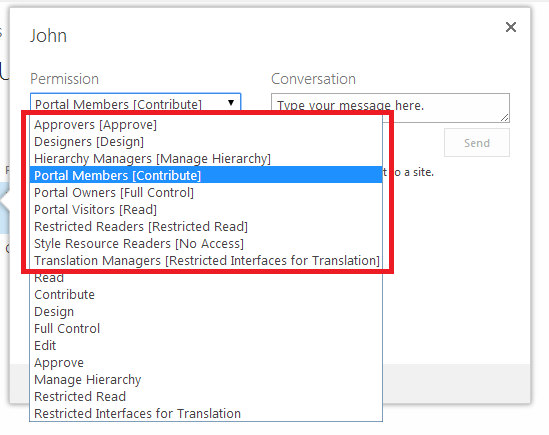
The Access Request feature in SharePoint 2013 does a good job of promoting this for access requests to a site. As shown below, the Permission drop down list on the approval form in this scenario contains the site’s SharePoint groups at the top.

1. Site Request

When the access request is for a page however, SharePoint behaves differently. The Permission drop down list on the approval form in this scenario only contains the individual permissions and no SharePoint groups.

2. Page Request

If you have a mixture of public and private pages in your site, then this behaviour can become a problem, as the approval form does not allow administrators to assign the user to an appropriate group on the Access Request approval form.

This post describes an approach for fixing this behaviour.

Disclaimer: Some might view this approach as a hack. Consider whether this approach is suitable for your situation.

Root cause

The root cause is in an OOTB JavaScript file, namely accessrequestsviewtemplate.js under the LAYOUTS folder. This script is included via the JSLink property of the view of the Access Requests list. This script is responsible for creating the approval form.

There is a function in this script that populates the Permission drop down list, namely GetAllPermissionStringsForSelectCtrl, as shown below (ULS logging code removed for brevity):

function GetAllPermissionStringsForSelectCtrl(iid, listItem, baseViewId, calloutActionMenuId) {
            var strId = iid + _permSelectIdSuffix;
            var str = "";
            var arrGroupIds;

            if (listItem["RequestedListItemId"] != (SP.Guid.get_empty()).toString("B")) {
                str = GetAllPermissionStringsForSelectCtrlCore(iid, listItem, baseViewId, calloutActionMenuId, null);
            }
            else if (listItem["RequestedListId"] != (SP.Guid.get_empty()).toString("B")) {
                str = GetAllPermissionStringsForSelectCtrlCore(iid, listItem, baseViewId, calloutActionMenuId, null);
            }
            else {
                arrGroupIds = g_accReqCSRBridgeSPSecToGrps[listItem["RequestedWebId"]];
                str = GetAllPermissionStringsForSelectCtrlCore(iid, listItem, baseViewId, calloutActionMenuId, arrGroupIds);
            }
            return str;
        }

This function is not complicated: it essentially is a wrapper around the GetAllPermissionStringsForSelectCtrlCore function, which does the actual job. The last parameter passed in to the Core function is an array of SharePoint groups, and determines whether the drop down list will contain groups. If this parameter is null, then groups will not appear on the drop down list.

As you can see, this parameter is only populated and passed in the final else, which is when the RequestedListItemId and RequestedListId fields of the request item are both Guid.Empty – i.e. when the request is for a site (as oppose to a page or a list).

Approach

I investigated a number of approaches:

  1. Attach an event handler to the Access Request list and clear out the RequestedListItemId and RequestedListId fields for each incoming request. I could not get this to work however. Whenever I clear out these fields, they’d just come back when I update the item in code.
  2. Override the GetAllPermissionStringsForSelectCtrl function in the least intrusive way possible (i.e. without modifying the source JS file). In the end this was not possible because this function is defined within an anonymous function.

In the end the approach I went with was to:

  • Deploy a clone of the JS file
  • Update the function in this clone
  • Update the JSLink property of the views of the Access Requests list to use this clone rather than the OOTB JS file

My updated GetAllPermissionStringsForSelectCtrl function is as below.

function GetAllPermissionStringsForSelectCtrl(iid, listItem, baseViewId, calloutActionMenuId) {
        ULSaQO:
            ;
            var strId = iid + _permSelectIdSuffix;
            var str = "";
            var arrGroupIds = g_accReqCSRBridgeSPSecToGrps[listItem["RequestedWebId"]];

			return GetAllPermissionStringsForSelectCtrlCore(iid, listItem, baseViewId, calloutActionMenuId, arrGroupIds);
        }

Here is my code to update the views. Please review the comments.

using (var site = new SPSite("http://myServer"))
			{
				using (var web = site.OpenWeb())
				{
					var list = web.Lists["Access Requests"];

					//The Access Requests list has several views with the same URL (i.e. pendingreq.aspx). We should
					//update all of them.
					var viewsToUpdate = list.Views.Cast<SPView>().Where(
						v => v.Url.EndsWith("Access Requests/pendingreq.aspx", StringComparison.InvariantCultureIgnoreCase)).ToList();

					foreach (var view in viewsToUpdate)
					{
						var jsLinks = view.JSLink.Split('|').ToList();
						var jsToReplaceIndex = jsLinks.FindIndex(js => js.Equals("accessrequestsviewtemplate.js", StringComparison.InvariantCultureIgnoreCase));

						//In this example I'm deploying my custom script to the LAYOUTS folder, but you can deploy
						//it to anywhere - just update this reference.
						jsLinks[jsToReplaceIndex] = "MyProject/accessrequestsviewtemplate-custom.js";
						view.JSLink = String.Join("|", jsLinks);
						view.Update();
					}
				}
			}

As each site/sub-site has its own Access Requests list, the above code to update the views will need to be executed on each site/sub-site where you want to change the OOTB behaviour. This also means that you could package it up and deploy/activate it as a feature (rather than running in a console test harness like I have done above).

So what does the end-state user permission look like?

I have tested several scenarios and the findings are as below.

With the OOTB behaviour:

  • Permission inheritance is broken on the page (if not already broken)
  • The selected individual permission is granted to the user for the page

With the updated behaviour, when a group is selected for the user:

  • The user is added to the selected group
  • Permission inheritance is broken on the page (if not already broken)
  • The group is not automatically granted permissions to the page if it doesn’t already have permissions to this page

Conclusion

The Access Request is a nice feature in SharePoint 2013, but if you have a mixture of public and private pages in one site then the OOTB behaviour may make it less than ideal or even unsuitable. With this relatively minor workaround you can overcome this hurdle and promote better practices in managing user permissions. Assess whether this workaround is suitable for your situation.

Posted in Access Request, Permission, SharePoint 2013 | 6 Comments

“The exclusive inplace upgrader timer job failed” when running the Products Configuration Wizard in SharePoint 2013

I was running the SharePoint 2013 Products Configuration Wizard to finalise the March 2013 PU and it failed at 10% of the last stage. I checked the error log and found that the error was:

The exclusive inplace upgrader timer job failed.

This means two things: 1) the SharePoint timer job service is involved behind the scene, and 2) something has gone wrong within the timer job.

Along with the log file that the Wizard tells you to examine, there is another log file that has information about what went wrong with the timer job. The name of this log file is something like Upgrade-20140724-111205-873-error.log and can be found in the same folder as the Wizard’s log file, i.e. in the ULS log folder.

In my case the error message in this second log file was:

Error running SQL DDL Script: IF EXISTS (SELECT TOP 1 1 FROM sys.database_principals WHERE name = N’db_owner’ A…. System.Data.SqlClient.SqlException (0x80131904): Cannot alter the role ‘db_owner’, because it does not exist or you do not have permission.

This indicates a SQL permission issue. According to TechNet (http://technet.microsoft.com/en-us/library/ee662513.aspx), the setup account needs:

  • dbcreator fixed server role
  • securityadmin fixed server role
  • db_owner fixed database role for all SharePoint databases in the server farm

It is important to note though that the account the SharePoint timer service is running under may not be the same account as the one you are using to run the Wizard. This service runs under the farm account.

I checked the SQL permissions for the farm account, and it does not have db_owner to all SharePoint databases. Rather than granting this role to each individual database, I granted the farm account the sysadmin server role. I ran the Wizard again and this time it completed successfully.

By granting the sysadmin role, you can easily revert this after completing the upgrade process.

Posted in SharePoint 2013, Upgrade | 4 Comments

The Moderation tab is missing from the Ribbon for Discussion boards in SharePoint 2013

For Discussion boards in SharePoint 2013, the Moderation tab on the Ribbon allows administrators to mark/unmark threads as featured. This tab appears when you switch to the Management view of the discussion board.

1 Moderation Tab

For a particular site I was working on, this tab would not show. It turned out that this was because the Team Collaboration Lists feature was not activated for the web. Activate this feature and the tab appears as expected.

As you know the Team Collaboration Lists feature enables users to create a number of different types of lists, e.g. discussion board, announcements, contacts, calendar, etc. So how was it possible that I had an instance of the discussion board created but the feature was not activated?

Well, this could happen under two scenarios: 1) the list was created by code, in which case the feature does not need to be activated – and 2) an administrator has disabled the feature after the list was created, which may occur if one wants to control the type/number of lists being created by power users.

Posted in SharePoint 2013 | Leave a comment

Getting URL to list item in list view’s JSLink

If you have specified a JSLink for your list view, how do you get the URL to the list item from within your rendering function? By URL, I mean a URL that can be used to view/display the list item.

If you look at the properties of the renderingContext.CurrentItem object, you will see that there isn’t anything that will give you the URL.

If you look at the properties of the renderingContext object itself, you will see that there are three relevant properties: displayFormUrl, editFormUrl and newFormUrl. The values of these properties however are not what you might expect. The value of displayFormUrl for example is something like http://myServer/_layouts/15/listform.aspx?
PageType=4&ListId=%7BD416B014%2DBDCA%2D4561%2D954C%2D7B43D3B66520%7D. Normally you would expect this to be more like http://myServer/Lists/myList/DispForm.aspx.

The good news is while the values of these properties look strange, they actually work. They redirect to the appropriate list form (that is display, edit or new).

So, to get the display URL for a list item, you should use the code below:

renderingContext.displayFormUrl + “&ID=” + renderingContent.CurrentItem.ID

Use the same approach to get the edit URL for the item, or the new item URL for the list.

Posted in JSLink, SharePoint 2013 | Leave a comment

Hiding New discussion link on SharePoint 2013 discussion board for read-only users

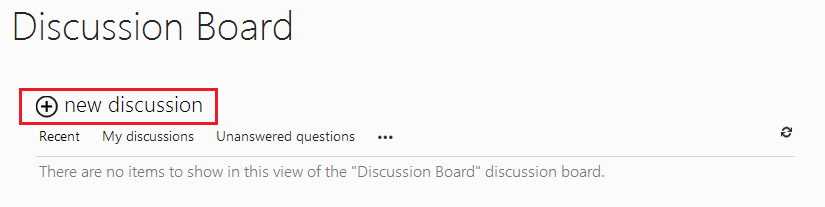
The OOTB discussion board in SharePoint 2013 has a ‘+ new discussion’ link at the top of the list as shown below.

1 New Discussion

This link however is shown even for read-only users. When a read-only user clicks this link, they get the error message “Sorry, this site hasn’t been shared with you.”. This user experience is not ideal. It doesn’t happen on other list types, and may be a MS bug. I tested this on June 2014 CU and it is still an issue.

So, to fix this issue we can use JSLink to invoke a custom JavaScript when this view loads. Our JavaScript would use JSOM to check the permissions of the user, and then use JQuery to hide the link if required.

Below is the code for our JavaScript. Review the in-code comment.

//The function that actually does the work
var BNH = BNH || {};
BNH.DiscussionListSubjectView = (function () {
	return {
		removeNewDiscussionLinkForReadOnlyUsers: function (ctx) {
			/** The approach we are taking is actually to hide the link first, then use JSOM to check the user's permissions,
			and then unhide it if they have permissions. This is because it takes 0.5-1 second to check the user's
			permissions. If we do thing the opposite order, i.e. check permission first then hide, then the user might
			see the link when the page loads, and then see it disappears, which is not a nice user experience.
			*/
			var newDiscussionLinkSelector = "div.ms-comm-forumContainer div.ms-comm-heroLinkContainer";

			//Ensure that JQuery is loaded on the page, e.g. via the master page.
			$(newDiscussionLinkSelector).hide();

			var list;
			SP.SOD.executeOrDelayUntilScriptLoaded(showNewDiscussionLinkForCreateUsers, 'sp.js');

			function showNewDiscussionLinkForCreateUsers() {
				var clientContext = new SP.ClientContext.get_current();

				list = clientContext.get_web().get_lists().getByTitle(ctx.ListTitle);
				clientContext.load(list, 'EffectiveBasePermissions');
				clientContext.executeQueryAsync(onSuccess, onFailure);
			}

			function onSuccess() {
				var userPermissions = list.get_effectiveBasePermissions();
				if (userPermissions.has(SP.PermissionKind.addListItems)) {
					$(newDiscussionLinkSelector).show();
				}
			}

			function onFailure() {
				alert('We are sorry but something has gone wrong while loading this view. Please contact your system administrator.');
			}
		}
	};
})();

//This function registers our JS with the view rendering.
(function () {
	var templateOverrideInfo = {};
	templateOverrideInfo.Templates = {};

	//This registers our JS to run after the view has been rendered. I ran into some issues creating the ClientContext
	//in JSOM when the JS was registered on OnPreRender.
	templateOverrideInfo.Templates.OnPostRender = BNH.DiscussionListSubjectView.removeNewDiscussionLinkForReadOnlyUsers;

	//Details of the OOTB Subject view that we want to target.
	templateOverrideInfo.BaseViewID = 3;
	templateOverrideInfo.ListTemplateType = 108;

	SPClientTemplates.TemplateManager.RegisterTemplateOverrides(templateOverrideInfo);
})();

And below is the code to update the Subject view with our JSLink. One thing to note is that the OOTB Subject view already has a value in its JSLink property. Therefore, we will have to append the location of our custom script to this property and use the separator ‘|’ to ensure that both scripts will be loaded.

using (var site = new SPSite("http://myServer"))
			{
				using (var web = site.OpenWeb())
				{
					var list = web.Lists["Discussions"];
					var view = list.Views["Subject"];
					view.JSLink = view.JSLink + "|~sitecollection/location_to_our_custom_script.js";
					view.Update();
				}
			}
Posted in JSLink, SharePoint 2013 | 4 Comments

Enable/disable anonymous access for selected pages in SharePoint

It is well known that you can enable anonymous access in SharePoint at the site or list/library level. But what about enabling/disabling anonymous access to selected pages within the site? The problem is you can only have one Pages library per site, and all publishing pages must sit in that library. Therefore, if you enable anonymous access on the Pages library, all pages in that library will be accessible anonymously.

I have found that (in SharePoint 2013 at least), you can disable anonymous access for selected pages within a library that has anonymous access enabled at the library level. You do this by breaking permission inheritance on the page.

Below are the permissions for the page before breaking inheritance. Notice the entry for Anonymous Users.

1 Before

And now the permissions after breaking inheritance.

2 After

I have not tested this with list items, but I expect that it would work the same way.


Posted in Permission, SharePoint | Leave a comment

Cancel button of ButtonSection does not return to previous page (SharePoint)

In SharePoint you can leverage OOTB controls to create professional and OOTB-looking pages. For example, below is a custom setting page that I have deployed to Central Admin.

1 Setting page

This page uses the OOTB InputFormSection and ButtonSection controls, as well as a few others.

The ButtonSection control in particular renders the standard OK and Cancel buttons, and its markup is as below:

<wssuc:buttonsection
			runat="server"
			topbuttons="true"
			bottomspacing="5"
			showsectionline="false"
			showstandardcancelbutton="true">
			<template_buttons>
				<asp:Button runat="server" class="ms-ButtonHeightWidth" OnClick="btnOK_OnClick" Text="<%$Resources:wss,multipages_okbutton_text%>" id="btnOKTop" accesskey="<%$Resources:wss,okbutton_accesskey%>"/>
			</template_buttons>
		</wssuc:buttonsection>

As you can see, you simply specify ShowStandardCancelButton to include the Cancel button on the form.

So for my page, I deployed it and found that the Cancel button takes the user back to the home page of the current web, rather than the previous page that they came from, which is not desirable.

I used ILSpy to look at the source code of this control and found the following:

  • If the page has a PageToRedirectOnCancel property, and the property has a value, then the Cancel button will take the user back to that page.
  • If CloseOnCancel is specified in the query string, and the value is set to 1, then the cancel button will execute the JavaScript window.close();. This is useful when your form is being displayed as a dialog.
  • Otherwise, the button will take the user back to the home page of the web.

My page inherits from LayoutsPageBase, which has the PageToRedirectOnCancel property. I simply override this in my class and provide the URL of the page I am expecting the user to come from and everything works as expected.

The control uses reflection to get the value for the PageToRedirectOnCancel property. So if the base class of your page does not have this property, e.g. if you are inheriting from PublishingLayoutPage, then you should be able to just define this property on your page and it should work.

Posted in SharePoint, SharePoint 2010, SharePoint 2013 | Leave a comment

Retrieving related records using RetrieveRequest in CRM

Retrieving related records in CRM may not be straightforward for someone starting out in CRM development. I previously wrote about how you can do this using QueryExpression and LinkEntity. However, I recently learnt of another, and probably better, approach using RetrieveRequest. This post explains this approach.

Scenario

I have two entities: Course (logical name ng_course) and Subject (logical name ng_subject). These entities are in an N:N relationship (relationship name ng_course_subject). I need to retrieve all the related Subjects for a given Course.

Approach explained

You might be tempted to first retrieve the Course entity by its ID (using the IOrganizationService.Retrieve() method) and then access the RelatedEntities property of the returned object. This however will not work, as the RelatedEntities property will be empty for entities retrieved using this way.

The RelatedEntities property will be populated as expected if we use the IOrganizationService.Execute() method and passing in a correctly setup RetrieveRequest object. The code below demonstrates how this can be done. Review the comments.

//Credentials for invoking the service
var credentials = new ClientCredentials();
credentials.UserName.UserName = "mydomain\\user1";
credentials.UserName.Password = "password1";

var organisationUrl = new Uri("http://nguyen5:5555/NguyenOrg/XRMServices/2011/Organization.svc");
var service = new OrganizationServiceProxy(organisationUrl, null, credentials, null);

//This is the ID of the Course, i.e. the parent record of the related Subject records that we need to retrieve.
var courseID = "7CF5E251-30C1-E311-84ED-00155DAB7703";

//Creating a new request
var retrieveRequest = new RetrieveRequest();

//The way RetrieveRequest works is that we tell it to retrieve
//a particular record, and also retrieve the related records for that
//record at the same time. Therefore, the Target property of the request 
//will be set to the parent record. We will subsequently specify the
//relationship for the request so that the right related
//records will also be retrieved.
retrieveRequest.Target = new EntityReference("ng_course", new Guid(courseID));

//The columns to retrieve for the parent record
retrieveRequest.ColumnSet = new ColumnSet("ng_maximumcreditpoints", "ng_name");

//This is where we specify the relationship for the request to retrieve
//the related records. Note that you can retrieve multiple types of related
//records by adding multiple relationships here.
retrieveRequest.RelatedEntitiesQuery = new RelationshipQueryCollection();

//The name of the relationship
retrieveRequest.RelatedEntitiesQuery.Add(new Relationship("ng_course_subject"),
				
	//Name of the related entities
	new QueryExpression("ng_subject")
	{
		//The columns to retrieve for the related records
		ColumnSet = new ColumnSet("ng_creditpoints", "ng_name")

		//Note that you can further filter the related records to be returned by
		//specifying the Criteria property for the QueryExpression.
	});
			
//Execute the request and process the response
var response = (RetrieveResponse)service.Execute(retrieveRequest);

Console.WriteLine("Course name: {0}, Max credit points: {1}", response.Entity["ng_name"], response.Entity["ng_maximumcreditpoints"]);
			
//The RelatedEntities property is now populated with the related records
foreach (var relatedSubject in response.Entity.RelatedEntities[new Relationship("ng_course_subject")].Entities)
{
	Console.WriteLine("Subject name: {0}, Credit points: {1}", relatedSubject["ng_name"], relatedSubject["ng_creditpoints"]);
}
Posted in CRM | 1 Comment