—————–
UPDATE (2013-06-06): This solution is now also available for SharePoint 2013. Download it here. The 2010 version is still available for download.
—————–
In SharePoint 2010 the user experience of uploading & inserting images into publishing pages has been greatly improved. Uploading and displaying images in list items however is still the same as 2007, which is pretty bad. You can hack this by adding an existing site column of type Publishing Image to the list. The user experience however is still pretty clunky.
In this post I will provide a walkthrough of developing a custom field type that will provide an intuitive user experience for uploading and display images in list items.
The user gets a link to upload an image:
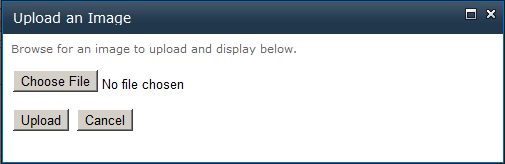
Clicking on the link launches a dialog that prompts the user to browse and upload an image from their computer:

Clicking Upload will upload the selected image to a specified location and update the list item:

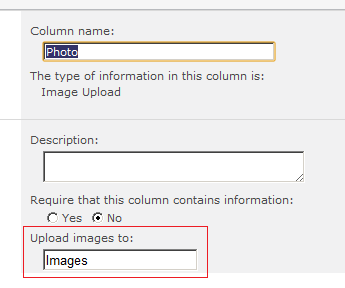
The location that the images will be uploaded to is specified in the setting of the column:

The rest of this post will be a walkthrough for creating this custom field type.
1. Creating the field type class
First we will create the class that defines our field type. Our field type will inherit from SPFieldUrl (Hyperlink or Picture column type). Create an empty SharePoint project in Visual Studio (mine is called BNH.SharePoint) and add a public class call ImageUploadFieldType. Implement the 2 constructors of the base class. As our field is specialised in images, in the constructors set the base DisplayFormat property to be Image:
namespace BNH.SharePoint
{
	public class ImageUploadFieldType : SPFieldUrl
	{
		public ImageUploadFieldType(SPFieldCollection fields, string fieldName)
			: base(fields, fieldName)
		{
			this.DisplayFormat = SPUrlFieldFormatType.Image;
		}

		public ImageUploadFieldType(SPFieldCollection fields, string typeName, string displayName)
			: base(fields, typeName, displayName)
		{
			this.DisplayFormat = SPUrlFieldFormatType.Image;
		}
	}
}
We need to specify the FieldRenderingControl for our field type. Think of the field rendering control as the code-behind of the field’s UI. We specify the FieldRenderingControl by overriding the base property. Add the following to the ImageUploadFieldType class:
public override BaseFieldControl FieldRenderingControl
{
	get
	{
		return new ImageUploadFieldControl() { FieldName = base.InternalName };
	}
}
Here we are returning an instance of ImageUploadFieldControl to be used as the field rendering control. We will create the ImageUploadFieldControl class in the next step.
2. Creating the field rendering control class
Add a public class call ImageUploadFieldControl to the project and make it inherits from BaseFieldControl. This will require you to add a reference to System.Web.dll to your project – go ahead and do that.
In this class, we will specify the RenderingTemplate to be used as the UI for the field. These will be in the form of ASCXs, which we will create later. Add the following to the ImageUploadFieldControl class:
protected override string DefaultTemplateName
{
	get
	{
		return base.ControlMode == SPControlMode.Display ? this.DisplayTemplateName : "ImageUploadField";
	}
}

public override string DisplayTemplateName
{
	get { return "ImageUploadFieldDisplay"; }
}
Here we are specifying that a rendering template name ImageUploadFieldDisplay should be used when the field is in display mode. Otherwise, a template name ImageUploadField should be used. We will create these 2 templates next.
3. Creating the rendering templates
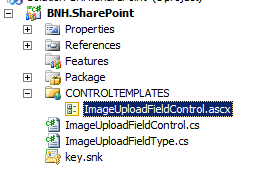
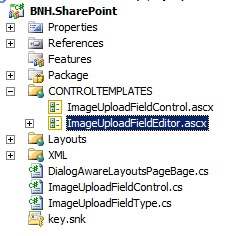
Rendering templates are defined in ASCX (User Control) files. In Visual Studio create a SharePoint mapped folder to {SharePointRoot}\TEMPLATE\CONTROLTEMPLATES. Right click on the CONTROLTEMPLATES folder (not on the project) in the solution and add a new User Control project item (under the SharePoint 2010 category) name ImageUploadFieldControl.ascx. Delete the ascx.cs and ascx.designer.cs files associated with the control. Your project should now look like below:

Edit the ImageUploadFieldControl.ascx file and change the <%@ Control %> directive to be as below:
<%@ Control Language=”C#” %>
Add the following beneath the <%@ Control %> directive:
<SharePoint:RenderingTemplate ID="ImageUploadField" runat="server">
	<Template>
	</Template>
</SharePoint:RenderingTemplate>
<SharePoint:RenderingTemplate ID="ImageUploadFieldDisplay" runat="server">
	<Template>
	</Template>
</SharePoint:RenderingTemplate>
As you can see we have declared 2 rendering templates. As specified in our field rendering control class, the 1st template will be used when the field is in new/edit mode. The 2nd will be used for display mode. These templates are empty at the moment. We will now add controls to them.
Update the 1st template (ImageUploadField) to be as follow:
<SharePoint:RenderingTemplate ID="ImageUploadField" runat="server">
<Template>
<script src="/_layouts/BNH.SharePoint/ImageUploadField.js" type="text/javascript"></script>
<div><asp:Image ID="imgImage" runat="server" /></div>
<a id="lnkLaunchUploadImagePage" runat="server" href="javascript:launchUploadImagePage('{0}', '{1}', '{2}', '{3}')">Upload an image</a>
<asp:LinkButton ID="btnRemoveImage" runat="server" Text="Remove image" />
<input type="hidden" id="hiddenImageUrl" runat="server" />
</Template>
</SharePoint:RenderingTemplate>
The elements we have just added are as follow:
- Reference to ImageUploadField.js: file containing all JavaScript functions for our field. We will create this file later.
- imgImage: the control that will display the image. JavaScript will be used to update this control with the URL of the uploaded image.
- lnkLaunchUploadImagePage: a link control that will execute a JavaScript function to launch our dialog page for the user to browse and upload an image. This function requires 4 params, which will be determined by our field rendering control on the server side. More on this later.
- btnRemoveImage: a button to allow the user to remove the image.
- hiddenImageUrl: a hidden control that will hold the URL of the uploaded image on postBack. The URL of the imgImage control will be updated by JavaScript on the client side. As this control does not participate in postBack however, we will need to also store the URL in a holder control that does. At all times, the value of the hiddenImageUrl control and the ImageUrl property of imgImage should be in sync.
Update the 2nd template (ImageUploadFieldDisplay) to be as follow:
<SharePoint:RenderingTemplate ID="ImageUploadFieldDisplay" runat="server">
	<Template>
		<asp:Image ID="imgImage" runat="server" /></Template>
</SharePoint:RenderingTemplate>
The lnkLaunchUploadImagePage link executes a JavaScript function that takes in 4 params. These will be determined by the field rendering control class on the server side. These params are:
- imageControlID: client side ID of the imgImage control
- urlHolderControlID: client side ID of the hiddenImageUrl control
- listID: SharePoint GUID of the current list
- fieldID: SharePoint GUID of our field
We will now add code to the rendering control class to pass in these params and manage the controls on the templates. First we’ll need to declare and instantiate the controls in our rendering control class so we can work with them on the server side. Add the following instance variables to ImageUploadFieldControl.cs:
//These controls are common to both edit/display templates
private Image imgImage;

//Edit template controls
private HtmlAnchor lnkLaunchUploadImagePage;
private LinkButton btnRemoveImage;
private HtmlInputHidden hiddenImageUrl;
Still in the ImageUploadFieldControl.cs class, add the following to override the CreateChildControls() method:
protected override void CreateChildControls()
{
	//If the field we are working on is null then exit and do nothing
	if (base.Field == null)
	{
		return;
	}

	base.CreateChildControls();

	//Now instantiate the control instance variables with the controls defined in the rendering templates.
	InstantiateMemberControls();

	if (base.ControlMode == SPControlMode.Display)
	{
		SetupDisplayTemplateControls();
	}
	else
	{
		SetupEditTemplateControls();
	}
}
Add the following code for the InstantiateMemberControls() method. This will instantiate the instance variable controls we declared earlier:
private void InstantiateMemberControls()
{
	//Common
	imgImage = (Image)base.TemplateContainer.FindControl("imgImage");

	//Edit controls
	lnkLaunchUploadImagePage = (HtmlAnchor)base.TemplateContainer.FindControl("lnkLaunchUploadImagePage");
	btnRemoveImage = (LinkButton)base.TemplateContainer.FindControl("btnRemoveImage");
	hiddenImageUrl = (HtmlInputHidden)base.TemplateContainer.FindControl("hiddenImageUrl");
}
Add the following code for the SetupDisplayTemplateControls() and SetupEditTemplateControls() methods:
private void SetupDisplayTemplateControls()
{
	bool isFieldValueSpecified = base.ItemFieldValue != null;

	//Hide the image if we do not have a URL to display
	SetControlCssVisibility(imgImage, isFieldValueSpecified);

	if (isFieldValueSpecified)
	{
		imgImage.ImageUrl = ((SPFieldUrlValue)base.ItemFieldValue).Url;
	}
}

private void SetupEditTemplateControls()
{
	lnkLaunchUploadImagePage.HRef = String.Format(lnkLaunchUploadImagePage.HRef,
		imgImage.ClientID, hiddenImageUrl.ClientID, base.List.ID, base.Field.Id);

	bool isFieldValueSpecified = base.ItemFieldValue != null;
	SetupEditControlsForFieldValueState(isFieldValueSpecified);

	btnRemoveImage.Click += new EventHandler(btnRemoveImage_Click);
}

private void SetControlCssVisibility(WebControl control, bool visible)
{
	//While we want to hide the control, we still want it to be rendered out to the client. This is
	//so that we can use JS to make the control visible again (e.g. after the user has uploaded an image). This
	//is why we are hiding by CSS.
	if (!visible)
	{
		control.Style["display"] = "none";
	}
	else
	{
		control.Style.Remove("display");
	}
}

/// <summary>
/// Tweaks controls depending on whether a value has been specified for the field.
/// </summary>
/// <param name="isValueSpecified"></param>
private void SetupEditControlsForFieldValueState(bool isValueSpecified)
{
	SetControlCssVisibility(imgImage, isValueSpecified);
	SetControlCssVisibility(btnRemoveImage, isValueSpecified);

	lnkLaunchUploadImagePage.InnerText = isValueSpecified ? "Upload another image" : "Upload an image";
}

void btnRemoveImage_Click(object sender, EventArgs e)
{
	imgImage.ImageUrl = hiddenImageUrl.Value = String.Empty;
	SetupEditControlsForFieldValueState(false);
}
Main points regarding the above code:
- Since we are inheriting from SPFieldUrl, the type of our field value will always be SPFieldUrlValue.
- In the SetupEditTemplateControls() method, we are changing the href of the lnkLaunchUploadImagePage link to pass in the 4 params to our JavaScript. Also in this method, we are hooking up the server-side handler for the btnRemoveImage link.
The last thing we need to do in this class (ImageUploadFieldControl.cs) is override the Value property. The get/set of this property is called when the field enters/exits edit mode, and we are passed the value of our field. Add the following code:
public override object Value
{
	//This is called at begining and editing of a list item. This means we only have to deal with
	//the editing template. Our field is based on the URL field so we will need to deal with SPFieldUrlValue.
	get
	{
		EnsureChildControls();

		if (String.IsNullOrEmpty(hiddenImageUrl.Value))
		{
			//Returning null here will cause SharePoint to NOT call the GetValidatedString() method
			//in our field type class. Return an empty UrlValue instead.
			return new SPFieldUrlValue();
		}

		var urlValue = new SPFieldUrlValue();
		urlValue.Url = urlValue.Description = hiddenImageUrl.Value;
		return urlValue;
	}
	set
	{
		EnsureChildControls();

		var urlValue = (SPFieldUrlValue)value;
		if (urlValue != null)
		{
			imgImage.ImageUrl = hiddenImageUrl.Value = urlValue.Url;
		}
		else
		{
			imgImage.ImageUrl = hiddenImageUrl.Value = String.Empty;
		}
	}
}
4. Creating JavaScript to launch the dialog page
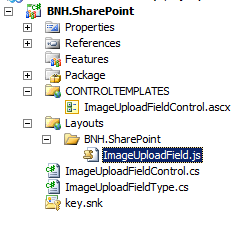
We will deploy a .JS file to the LAYOUTS folder to hold all of our JavaScript. In Visual Studio add a SharePoint “Layouts” Mapped Folder to the project. Visual Studio will create a sub-folder under the Layouts folder with the same name as your project. Right click on this sub-folder and add a text file call ImageUploadField.js. Your project structure should now look like the below:

Add the following code for the launchUploadImagePage() function to the newly added JS file. This function is called by our edit rendering template.
function launchUploadImagePage(imageControlID, urlHolderControlID, listID, fieldID) {
	/*This function launches a dialog page that allows user to upload the image. The dialogCallBack function
	will update the specified image control with the URL of the newly uploaded image. The callBack function
	will also copy this URL to a specified hidden control. This hidden control will allow our custom field to
	extract the new URL and save it to the SharePoint field on postBack.

	imageControlID:	the HTML ID of the IMG element that is used to display the uploaded image.
	urlHolderControlID:	the HTML ID of the INPUT (hidden) element that will hold the URL of the uploaded image.
	listID: SharePoint ID of the list containing the field that represents the image. This will be passed to the
	dialog page as part of the queryString
	fieldID: SharePoint ID of the field that represents this image. This will be passed to the dialog page as part of the
	queryString.*/

	var dialogOptions = {
		url: SP.Utilities.Utility.getLayoutsPageUrl("BNH.SharePoint/UploadImage.aspx?lID=" + listID + "&fID=" + fieldID),
		title: "Upload an Image",
		args: { imageElementID: imageControlID, urlHolderElementID: urlHolderControlID },
		dialogReturnValueCallback: Function.createDelegate(null, uploadImagePage_OnClose)
	};

	SP.UI.ModalDialog.showModalDialog(dialogOptions);
}
This function is pretty straight forward. We are launching the UploadImage.aspx application page (to be created) in a dialog and specify uploadImagePage_OnClose as the callback JavaScript function (to be created) to be called when the dialog closes. Note that we are passing an argument object (via JavaScript) to the application page using the args property of the dialogOptions object. This argument object has 2 properties, imageElementID and urlHolderElementID. The application page will eventually pass this argument object back to the OnClose callback function.
5. Creating the ASPX dialog page
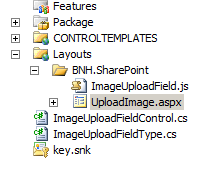
This is an application page that will prompt the user to select an image from their computer. In Visual Studio’s, right click on the project and add a new item. Choose the Application Page template and name it UploadImage.aspx. This should create a new ASPX page under the Layouts\[projectName] folder, as shown below:

Open the markup for UploadImage.aspx and enter the code below:
<asp:Content ID="PageHead" ContentPlaceHolderID="PlaceHolderAdditionalPageHead" runat="server">

</asp:Content>

<asp:Content ID="Main" ContentPlaceHolderID="PlaceHolderMain" runat="server">
	Browse for an image to upload and display below.
	<br /><br />
	<asp:FileUpload ID="fileUpload" runat="server" />
	<br /><br />
	<asp:Button ID="btnUpload" runat="server" Text="Upload" OnClick="btnUpload_Click" />
	<asp:Button ID="btnCancel" runat="server" Text="Cancel" OnClick="btnCancel_Click" />
</asp:Content>

<asp:Content ID="PageTitle" ContentPlaceHolderID="PlaceHolderPageTitle" runat="server">
Upload an Image
</asp:Content>

<asp:Content ID="PageTitleInTitleArea" ContentPlaceHolderID="PlaceHolderPageTitleInTitleArea" runat="server" >
Upload an Image
</asp:Content>
The above code is pretty straightforward. We added an ASP.NET FileUpload control (fileUpload), a button (btnUpload) to allow the user to initiate the upload process, and a button (btnCancel) to cancel.
We will display this application page in a dialog. For this to work properly we will need to do some additional plumbing as described in Waldek Mastykarz’s post: http://blog.mastykarz.nl/sharepoint-2010-application-pages-modal-dialogs/. First we will create a base class for our application page. The code in this base class is mostly from Waldek’s post. Add a public abstract class to your project and name it DialogAwareLayoutsPageBase.cs and enter the code below:
public enum ModalDialogResult
	{
		//Source: http://blog.mastykarz.nl/sharepoint-2010-application-pages-modal-dialogs/

		Invalid = -1,
		Cancel = 0,
		OK = 1
	}

/// <summary>
	/// Modal Dialog-aware Application Page base class.
	///
	/// Source: http://blog.mastykarz.nl/sharepoint-2010-application-pages-modal-dialogs/ (used with minor
	/// refactoring and renaming).
	/// </summary>
	public abstract class DialogAwareLayoutsPageBage : LayoutsPageBase
	{
		/// <summary>
		/// URL of the page to redirect to when not in Dialog mode.
		/// </summary>
		protected string PageToRedirectOnOK { get; set; }

		/// <summary>
		/// Returns true if the Application Page is displayed in Modal Dialog.
		/// </summary>
		protected bool IsInDialogMode
		{
			get
			{
				return !String.IsNullOrEmpty(base.Request.QueryString["IsDlg"]);
			}
		}

		/// <summary>
		/// Closes the dialog and returns the OK result to the client script caller.
		/// </summary>
		protected void EndOperation()
		{
			EndOperation(ModalDialogResult.OK);
		}

		/// <summary>
		/// Closes the dialog and returns the specified result to the client script caller.
		/// </summary>
		/// <param name="result"></param>
		protected void EndOperation(ModalDialogResult result)
		{
			EndOperation(result, this.PageToRedirectOnOK);
		}

		/// <summary>
		/// Closes the dialog and returns the specified result and returnValue to the client script caller.
		/// </summary>
		/// <param name="result"></param>
		/// <param name="returnValue">Value to pass to the client script callback method defined when opening the Modal Dialog.</param>
		protected void EndOperation(ModalDialogResult result, string returnValue)
		{
			if (this.IsInDialogMode)
			{
				Page.Response.Clear();
				Page.Response.Write(String.Format(CultureInfo.InvariantCulture,
					"<script type=\"text/javascript\">window.frameElement.commonModalDialogClose({0}, {1});</script>",
					new object[]
					{
						(int)result,
						String.IsNullOrEmpty(returnValue) ? "null" : returnValue
					}));
				Page.Response.End();
			}
			else
			{
				RedirectOnOK();
			}
		}

		/// <summary>
		/// Redirects to the URL specified in the PageToRedirectOnOK property.
		/// </summary>
		private void RedirectOnOK()
		{
			SPUtility.Redirect(this.PageToRedirectOnOK ?? SPContext.Current.Web.Url, SPRedirectFlags.UseSource, this.Context);
		}
	}
Back in the code-behind of our application page, make it inherits from the abstract class above, and enter the code below:
public partial class UploadImage : DialogAwareLayoutsPageBage
	{
		protected void Page_Load(object sender, EventArgs e)
		{
		}

		protected void btnUpload_Click(object sender, EventArgs e)
		{
			//TODO: Handle case where file to upload has not been selected

			var uploadLocation = GetUploadLocation();

			//TODO: Handle case where uploadLocation is not specified
			var imageUrl = UploadImageToLibrary(uploadLocation);

			/*Close the dialog and set the eventArgs param for the JS callBack function. The fields are as follow:
			 *
			 * imageUrl:	URL	of the uploaded image
			 * controlIDs:	The args object that was originally passed to this dialog
			 * */

			var eventArgsJavaScript = String.Format("{{imageUrl:'{0}',controlIDs:window.frameElement.dialogArgs}}", imageUrl);
			base.EndOperation(ModalDialogResult.OK, eventArgsJavaScript);
		}

		protected void btnCancel_Click(object sender, EventArgs e)
		{
			base.EndOperation(ModalDialogResult.Cancel);
		}

		private string GetUploadLocation()
		{
			//TODO: Handle case where the IDs are not specified.
			var listID = this.Request.QueryString["lID"];
			var fieldID = this.Request.QueryString["fID"];
			var list = SPContext.Current.Web.Lists.GetList(new Guid(listID), false);
			var field = list.Fields[new Guid(fieldID)];

			return (string)field.GetCustomProperty("UploadImagesTo");
		}

		/// <summary>
		/// Returns the URL of the newly uploaded image
		/// </summary>
		/// <param name="uploadLocation">The name of a library in the current web where the image should be uploaded to</param>
		/// <returns></returns>
		private string UploadImageToLibrary(string uploadLocation)
		{
			if (fileUpload.HasFile)
			{
				//TODO: Handle case where location is not valid
				var web = SPContext.Current.Web;
				var library = web.Lists[uploadLocation];

				//TODO: Handle existing file - for now we are overwriting
				SPFile uploadedFile = library.RootFolder.Files.Add(fileUpload.FileName, fileUpload.PostedFile.InputStream, true);
				return web.Url.TrimEnd('/') + '/' + uploadedFile.Url.TrimStart('/');
			}
			return String.Empty;
		}
	}
There are 2 important parts in the code above. First is the GetUploadLocation() method. In this method we use the list and field GUIDs (that were passed by our JavaScript) and retrieve the parent list of our image field, then the image field itself, then a custom property of the field, namely ‘UploadImagesTo‘. We will define this custom property for our field in a later step. The other important bit is at the end of the btnUpload_Click() method, where we pass back the URL of the uploaded image and control IDs (of the image control and the hidden holder control) to the JavaScript callBack function.
6. Creating JavaScript callBack function to update HTML
We will now create the JavaScript callBack function that will pick up the URL of the uploaded image from our dialog page and update the HTML to display the image on the page. In Visual Studio open the ImageUploadField.js field under the Layouts folder and add the following code:
function uploadImagePage_OnClose(result, eventArgs) {
	/*eventArgs is an object containing the following fields:

	eventArgs.imageUrl:							URL	of the uploaded image
	eventArgs.controlIDs.imageElementID:		HTML ID of the IMG that is used to display the image
	eventArgs.controlIDs.urlHolderElementID:	HTML ID of the hidden control that is used to store the URL of the image
	*/

	if (result == SP.UI.DialogResult.OK) {
		//Clean any " from the URL
		while (eventArgs.imageUrl.indexOf('"') != -1) {
			eventArgs.imageUrl = returnValue.imageUrl.replace('"', '');
		}

		//The Image and the Remove Image elements would have been hidden if the field did not have
		//a value specified. Unhide them here.
		var imgElement = document.getElementById(eventArgs.controlIDs.imageElementID);
		imgElement.src = eventArgs.imageUrl;
		imgElement.style.display = "block";

		var removeImgElement = getRelatedElementFromImageElementID(imgElement.id, "btnRemoveImage");
		removeImgElement.style.display = "inline";

		//Further UI tweaks
		var uploadImgElement = getRelatedElementFromImageElementID(imgElement.id, "lnkLaunchUploadImagePage");
		uploadImgElement.innerText = "Upload another image";

		document.getElementById(eventArgs.controlIDs.urlHolderElementID).value = eventArgs.imageUrl;
	}
}

function getRelatedElementFromImageElementID(imgElementID, relatedElementServerSideID) {
	/*Returns the specified related element (e.g. Upload Image or Remove Image link)
	from the specified Image element ID. As these elements are nested within the same set of server
	side controls, we can expect their client ID to be the same, except for their server side IDs of course.*/
	return document.getElementById(imgElementID.replace("imgImage", relatedElementServerSideID));
}
The above code is fairly straightforward, but review the in-code comments for further explanation.
7. Create the fldtypes XML to register the field type
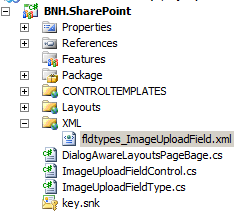
OK we have done a lot of work so far, but we haven’t actually tell SharePoint about our custom field yet. To do this we need to create an XML file. In Visual Studio create a SharePoint mapped folder to {SharePointRoot}\TEMPLATE\XML. Right click on this folder (not on the project) and add a new XML file named fldtypes_ImageUploadField.xml. The file name needs to start with ‘fldtypes’ for it to work. Your project should now look like this:

Enter the following XML:
<FieldTypes>
	<FieldType>
		<Field Name="TypeName">ImageUpload</Field>
		<Field Name="ParentType">URL</Field>
		<Field Name="TypeDisplayName">Image Upload</Field>
		<Field Name="TypeShortDescription">Image Upload and Display</Field>
		<Field Name="UserCreatable">TRUE</Field>
		<Field Name="ShowOnListCreate">TRUE</Field>
		<Field Name="ShowOnSurveyCreate">TRUE</Field>
		<Field Name="ShowOnDocumentLibraryCreate">TRUE</Field>
		<Field Name="ShowOnColumnTemplateCreate">TRUE</Field>
		<Field Name="FieldTypeClass">BNH.SharePoint.ImageUploadFieldType, $SharePoint.Project.AssemblyFullName$</Field>
		<Field Name="FieldEditorUserControl">/_controltemplates/ImageUploadFieldEditor.ascx</Field>
		<PropertySchema>
			<Fields>
				<Field Name="UploadImagesTo"
						DisplayName="UploadImagesTo"
						MaxLength="255"
						DisplaySize="100"
						Type="Text"
						Hidden="TRUE">
					<Default>Images</Default>
				</Field>
			</Fields>
		</PropertySchema>
	</FieldType>
</FieldTypes>
Some important points about the XML above:
- FieldEditorUserControl: Our field type will have custom properties. This user control will be displayed and used to edit the custom properties when we create/edit columns of our field type. We will create the referenced user control in a later step.
- PropertySchema: This defines the custom properties associated with our field type. While MSDN states that PropertySchema has been deprecated, I have found that it is required for the value of custom properties to be saved. Another thing to note is that we have set the Hidden property of our custom UploadImagesTo property to be TRUE. This is because we want to use our user control as the UI for editing the custom properties. The Hidden property is actually not documented but it works.
8. Create the field editor user control
In Visual Studio right click on the CONTROLTEMPLATES folder (and not the project) and add a new user control from the SharePoint\2010 category. Name this user control ImageUploadFieldEditor.ascx. Your project should now look like below:

Edit the markup for the ASCX of the control and add the code below:
<table class="ms-authoringcontrols" border="0" width="100%" cellspacing="0" cellpadding="0">
	<tr>
		<td class="ms-authoringcontrols" colspan="2">
			Upload images to:
		</td>
	</tr>
	<tr><td><img src="/_layouts/images/blank.gif" width="1" height="3" style="display: block" alt=""></td></tr>
	<tr>
		<td width="11px"><img src="/_layouts/images/blank.gif" width="11" height="1" style="display: block" alt=""/></td>
		<td class="ms-authoringcontrols" width="99%">
			<asp:TextBox ID="txtUploadImagesTo" runat="server" Text="Images" /></td>
	</tr>
</table>
Most of the above code is styling to get the SharePoint look and feel. The control of interest is txtUploadImagesTo, which is a text box that will allow the user to configure where the field should upload the images to.
Next, edit the code-behind for the above user control and add the code below:
public partial class ImageUploadFieldEditor : UserControl, IFieldEditor
	{
		private const string UPLOAD_IMAGES_TO_PROPERTY_NAME = "UploadImagesTo";

		protected void Page_Load(object sender, EventArgs e)
		{
		}

		public bool DisplayAsNewSection
		{
			get { return false; }
		}

		public void InitializeWithField(SPField field)
		{
			//In this method we will sync the custom settings of the field with
			//our custom setting controls on the editor screen. Field however will be null when we are in create mode, in
			//which case the default value (as specified in the fldtypes XML will apply).
			if (!Page.IsPostBack && field != null)
			{
				txtUploadImagesTo.Text = (string)field.GetCustomProperty(UPLOAD_IMAGES_TO_PROPERTY_NAME);
			}
		}

		public void OnSaveChange(SPField field, bool isNewField)
		{
			/*This is perhaps the most tricky part in implementing custom field type properties.
			 * The field param passed in to this method is a different object instance to the actual field being edited.
			 * This is why we'll need to set the value to be saved into the LocalThreadStorage, and retrieve it back out
			 * in the FieldType class and update the field with the custom setting properties. For more info see
			 * http://msdn.microsoft.com/en-us/library/cc889345(office.12).aspx#CreatingWSS3CustomFields_StoringFieldSetting */

			//TODO: Handle case where location is not specified or not valid
			Thread.SetData(Thread.GetNamedDataSlot(UPLOAD_IMAGES_TO_PROPERTY_NAME), txtUploadImagesTo.Text);
		}
	}
Review the in-code comments above, but the main points are:
- The code-behind class needs to implement the IFieldEditor interface.
- We need to use the LocalThreadStorage to save the values of custom properties (review the link in the comment). We also need to do additional work in the main field type class in the next step to make this works. Remember that we still need PropertySchema defined in the fldtypes XML for the field type, even though MSDN states that PropertySchema has been deprecated.
9. Updating the main field type class to save custom properties
In the last step our field editor user control puts our custom property value into the LocalThreadStorage. We now need to edit our main field type class (ImageUploadFieldType.cs) to intercept the Update event to pull the custom property value out of the LocalThreadStorage and save it with the field. We also need to intercept the OnAdded event and force an update to save our custom property value when the field is being created.
Edit the ImageUploadFieldType.cs and add the following code:
public override void OnAdded(SPAddFieldOptions op)
		{
			/*We will need to update the field again after it is added to save the custom setting properties. For more
			 * info see http://msdn.microsoft.com/en-us/library/cc889345(office.12).aspx#CreatingWSS3CustomFields_StoringFieldSetting */

			base.OnAdded(op);
			this.Update();
		}

		public override void Update()
		{
			base.SetCustomProperty("UploadImagesTo",
				Thread.GetData(Thread.GetNamedDataSlot("UploadImagesTo")));

			base.Update();
		}
10. Add validation for the field type
We will add 1 simple validation for our field type, and that is the required field validation. Add the following code to the ImageUploadFieldType.cs class:
public override string GetValidatedString(object value)
		{
			if (!base.Required)
			{
				return base.GetValidatedString(value);
			}

			var urlValue = value as SPFieldUrlValue;
			if (urlValue == null || String.IsNullOrEmpty(urlValue.Url))
			{
				throw new SPFieldValidationException(base.Title + " is a required field.");
			}
			return base.GetValidatedString(value);
		}
One thing to be mindful of in the above code is that the type of value will be SPFieldUrlValue as our field is inherited from SPFieldUrl.
11. Add XSL to render the field in list view
OK, the last thing we have to do (phew!) is to add an XSL to render our field in a list view. Without this XSL the field won’t be rendered. In Visual Studio create a SharePoint mapped folder to {SharePointRoot}\Template\LAYOUTS\XSL. Right click on the XSL folder (and not on the project) and add a new XSL file. Name this file fldtypes_ImageUploadField.xsl. Ensure that the file extension is xsl and not xslt. The extension has to be xsl for it to work. Add the code below for the XSL:
<xsl:stylesheet xmlns:x="http://www.w3.org/2001/XMLSchema"
        xmlns:d="http://schemas.microsoft.com/sharepoint/dsp"
        version="1.0"
        exclude-result-prefixes="xsl msxsl ddwrt"
        xmlns:ddwrt="http://schemas.microsoft.com/WebParts/v2/DataView/runtime"
        xmlns:asp="http://schemas.microsoft.com/ASPNET/20"
        xmlns:__designer="http://schemas.microsoft.com/WebParts/v2/DataView/designer"
        xmlns:xsl="http://www.w3.org/1999/XSL/Transform"
        xmlns:msxsl="urn:schemas-microsoft-com:xslt"
        xmlns:SharePoint="Microsoft.SharePoint.WebControls"
        xmlns:ddwrt2="urn:frontpage:internal">

	<xsl:template match ="FieldRef[@FieldType='ImageUpload']" mode="URL_body">
		<xsl:param name="thisNode" select="."/>
		<xsl:variable name="desc" select="$thisNode/@URL.desc" />
		<xsl:variable name="url" select="substring-before($thisNode/@*[name()=current()/@Name],',')"/>
		<xsl:choose>
			<xsl:when test="$url=''">
			</xsl:when>
			<xsl:otherwise>
				<img onfocus="OnLink(this)" src="{$url}" alt="{$desc}" />
			</xsl:otherwise>
		</xsl:choose>
	</xsl:template>
</xsl:stylesheet>
The key bit in the above is “FieldRef[@FieldType=’ImageUpload’]”. This ensures that this XSL is only applied to instances of our field type.
That’s it! Go ahead and deploy your solution. You will need to do an IISRESET after deploying for SharePoint to pick up the new field though.
12. Download complete code
You can download the complete Visual Studio solution here: download. (See Updates section below.)
13. Other posts you may be interested in
Want to improve the user experience in SharePoint? Check out my other custom solutions here.
14. Updates
The code as originally posted here does not allow you to programatically set the UploadImagesTo property of the field. I have refactored the code a bit and expose UploadImagesTo as a public property. You can download the new code here, which also contains a test harness demonstrating how to programatically create the field and set the UploadImagesTo property.
15. Appendix 1 – Provisioning a site column of this type through XML
Below is an example of the XML you can use to provision a site column of this field type from a feature. Ensure that the field type is already deployed before installing/activating this feature.
<Field Type="ImageUpload" Name="UserPhoto" DisplayName="User Photo" ID="{B4FB10B5-CBE7-4395-B2B1-27CDBD8EC006}" Format="Image" Required="FALSE">
		<Customization>
			<ArrayOfProperty>
				<Property>
					<Name>UploadImagesTo</Name>
					<Value xmlns:q1="http://www.w3.org/2001/XMLSchema" p4:type="q1:string" xmlns:p4="http://www.w3.org/2001/XMLSchema-instance">ImagesLibrary</Value>
				</Property>
			</ArrayOfProperty>
		</Customization>
	</Field>





 Bernado Nguyen-Hoan's Blog - Coding Stories from an IT Mercenary