How to close SharePoint modal wait screen after postBack when page is in dialog mode

————–
UPDATE: The code originally posted doesn’t work with IE. You get a “Can’t execute code from a freed script” error and the wait screen is not removed after postBack. The code works fine in Chrome and Firefox.

I now have updated this post with new code to work with both IE and Chrome. I haven’t tested with Firefox, but it should also work.
————–

You can use SharePoint 2010’s JavaScript method SP.UI.ModalDialog.showWaitScreenWithNoClose() to show a modal wait screen that looks like below:

This can be a nice alternative to SPLongOperation when you need to perform time consuming operations. You can attach the call to this method on the client click event of a button as below:

<asp:Button ID="btnDoWork" Text="Do Some Work" runat="server" OnClientClick="javascript:SP.UI.ModalDialog.showWaitScreenWithNoClose('Please Wait', 'Please wait as this may take a few minutes...', 76, 330);" OnClick="btnDoWork_Click"/>

If this was on a normal application page this would work fine. The wait screen would be displayed, the server-side code of the button will be fired, and when the page comes back from postBack, the wait screen would be removed.

If the same page was being displayed in dialog mode however, the wait screen would not be removed after the postBack is completed. This is because the postBack only updated the IFRAME that displays our application page and the wait screen does not belong to that IFRAME.

The showWaitScreenWithNoClose() actually returns a reference to the wait screen, and we can call the close() method on this variable to close the wait screen. The problem is we need to store this variable in the right place for it to survive the postBack – and that place is the window.frameElement object.

Change the button to as below:

<asp:Button ID="btnDoWork" Text="Do Some Work" runat="server" OnClientClick="javascript:showWaitScreen();" OnClick="btnDoWork_Click"/>

Next add the following JavaScript to the page, e.g. in the PlaceHolderAdditionalPageHead section:

————–
UPDATE: The code below has been updated to work with IE. Review the in-code comment below.
————–

<script language="javascript">
	function showWaitScreen() {
		/*When our page is in dialog mode, then window.parent is the parent page of the dialog. When it is NOT
	in dialog mode, then window.parent is just the current page. window.parent is never null.

	When our page is in dialog mode, we need to execute showWaitScreenWithNoClose in the context of the parent page. This
	is because when the postBack completes on our dialog, the context of our dialog will be destroyed, and calling close
	on the wait screen object will result in a "Can't execute code from a freed script" error in IE (works OK in Chrome though).

	When our page is NOT in dialog mode, the wait screen will be removed when the postBack completes and the page is reloaded
	anyway, i.e. we don't have to worry about it.

	We also need to store the waitDialog variable in a place that will survive the postBack. This is the parent page
	when our page is in dialog mode. When our page is NOT in dialog mode, then we don't really care - so just put it anywhere.

	Because we are calling eval under the parent page's context, the waitDialog below is stored in the correct place.
	*/
	window.parent.eval("window.waitDialog = SP.UI.ModalDialog.showWaitScreenWithNoClose('Please Wait', 'Please wait as this may take a few minutes...', 76, 330);");
	}

In the server-side code of the button, emit JavaScript to retrieve the waitDialog variable and call the close() method as below:

————–
UPDATEThe code below has been updated to work with IE. Review the in-code comment below.
————–

protected void btnDoWork_Click(object sender, EventArgs e)
{
	//Simulate a time consuming operation
	System.Threading.Thread.Sleep(3000);

	//Emit the script that will close the wait screen. We only need to do this when
	//the app page is in dialog mode, in which case window.frameElement will NOT be null
	this.ClientScript.RegisterStartupScript(this.GetType(), "CloseWaitDialog", @"
<script language='javascript'>
	if (window.frameElement != null) {
		if (window.parent.waitDialog != null) {
			window.parent.waitDialog.close();
		}
	}
</script>");
}
Posted in ModalDialog, SharePoint 2010, SharePoint JavaScript API | Tagged | 10 Comments

How to detect user is locked out when using Form Based Authentication in SharePoint 2010

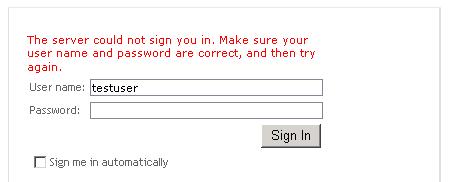
When using FBA in SharePoint 2010 you get the error message below on login when the user name and/or password is incorrect.

You get the same error message when the user account is locked out, which is not very useful in helping the user understands why his/her login isn’t working.

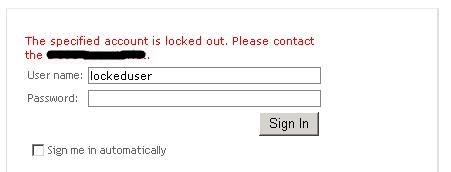
Ideally, a message like below should be displayed for locked out accounts:

The rest of this post describes how you can do this.

1. Create custom login page

First we need a custom login page. You’d typically approach this by copying the OOTB login page at {SharePointRoot}\TEMPLATE\IDENTITYMODEL\FORMS\Default.aspx and then modify it.

Create an empty SharePoint project in Visual Studio (mine is called CustomLoginPage) and add a ‘SharePoint “Layouts” Mapped Folder‘ to the project. This will also add a sub-folder (underneath the mapped Layouts folder) with the same name as the project. Right click on this sub-folder and add an existing item. Browse to and select {SharePointRoot}\TEMPLATE\IDENTITYMODEL\FORMS\default.aspx. In Visual Studio, rename this file to login.aspx.

Right click on the sub-folder again and add a class name login.aspx.cs.

Your project should now look like below.

2. Hook up the custom login page to the code-behind

The OOTB login page uses the class Microsoft.SharePoint.IdentityModel.Pages.FormsSignInPage as its code-behind. We will now update our custom login page to use our custom code-behind (which will inherit from the OOTB class).

Edit the login.aspx file and look for Page directive, which should look like below:

<%@ Page Language="C#" Inherits="Microsoft.SharePoint.IdentityModel.Pages.FormsSignInPage" MasterPageFile="~/_layouts/simple.master"       %>

Change the Inherits attribute to point to our login class, which should be “CustomLoginPage.Layouts.CustomLoginPage.login” if you have followed the steps so far exactly.

We also need to add an Assembly directive to the top of the page, like below (your assembly strong name will be different):

<%@ Assembly Name="CustomLoginPage, Version=1.0.0.0, Culture=neutral, PublicKeyToken=cd31ba2a5f8163e5" %>

Now, we are going to make our code-behind inherits from the OOTB FormsSignInPage class. Add a reference to the following assemblies to the project:

  • Microsoft.SharePoint.IdentityModel.dll (can be found under C:\Windows\assembly\GAC_MSIL\Microsoft.SharePoint.IdentityModel\14.0.0.0__71e9bce111e9429c)
  • System.Web.dll (can be found under C:\Windows\Microsoft.NET\Framework\v2.0.50727)

Edit the login.aspx.cs file. Change the class to be public and make it inherits from FormsSignInPage, which is defined in the Microsoft.SharePoint.IdentityModel.Pages namespace.

3. Add code to detect when user is locked out

The OOTB FormsSignInPage uses a standard ASP.NET Login control. As we have inherited from this class, this control is also available to us.

The ASP.NET Login control has a LoginError event, which fires when a login failed. We will hook in to this event to detect if the user is locked out, and if so, alter the default error message to something more helpful.

Add the following code to the class and review the in-code comments:

protected override void OnLoad(EventArgs e)
		{
			//Ensure to call base.OnLoad(e) so all the other OOTB initialisation can take place
			base.OnLoad(e);

			base.signInControl.LoginError += new EventHandler(signInControl_LoginError);

			//Revert back to the default message on each load
			base.signInControl.FailureText = "The server could not sign you in. Make sure your user name and password are correct, and then try again.";
		}

		void signInControl_LoginError(object sender, EventArgs e)
		{
			//Verify if the failure is because the account is locked out. If so, display a more meaningful error message.
			var provider = this.CurrentMembershipProvider;
			var user = provider.GetUser(this.signInControl.UserName, false);

			if (user != null && user.IsLockedOut)
			{
				base.signInControl.FailureText = "The specified account is locked out. Please contact your system administrator.";
			}
		}

		private MembershipProvider CurrentMembershipProvider
		{
			get
			{
				return Membership.Providers[base.Site.WebApplication.IisSettings[0].FormsClaimsAuthenticationProvider.MembershipProvider];
			}
		}

One interesting thing about the code above is the CurrentMembershipProvider property. Your web app is likely to have multiple membership providers defined. The default one is named ‘i‘, and the other is the one you would have manually configured in web.config and specified in Central Admin. In the code you need to explicitly reference the provider that you want to use, and you can use the code as shown above to do this without hardcoding the provider name.

That’s all the coding. Go ahead and deploy your solution.

4. Configure your web app to use the custom login page

Configuring FBA is beyond the scope of this post, but ensure the following:

  • Claim and FBA is enabled for your web app
  • Your membership provider is configured in the various web.config files
  • Your web app in Central Admin is configured to use the membership provider you configured in the web.config
  • You configured the web app to use a “Custom Sign In Page“, such as /_layouts/customloginpage/login.aspx in this example
Posted in Claim Authentication, Form Based Authentication, SharePoint 2010 | 1 Comment

Lessons learnt in implementing ASP.NET login controls in SharePoint 2010

Recently I had to implement Create User, Change Password, Password Reset (Recovery) in SharePoint 2010. I decided to use the OOTB ASP.NET login controls for this. Mostly these controls just worked in SharePoint 2010 as they do in ASP.NET. There were however a few issues that need to be worked around.

1. System.ArgumentException: Exception of type ‘System.ArgumentException’ was thrown. Parameter name: encodedValue

First and foremost is the exception above. The full stack is as follow:

[ArgumentException: Exception of type ‘System.ArgumentException’ was thrown. Parameter name: encodedValue]   Microsoft.SharePoint.Administration.Claims.SPClaimEncodingManager.DecodeClaimFromFormsSuffix(String encodedValue) +26166622   Microsoft.SharePoint.Administration.Claims.SPClaimProviderManager.GetProviderUserKey(String encodedSuffix) +79   Microsoft.SharePoint.SPGlobal.CreateSPRequestAndSetIdentity(SPSite site, String name, Boolean bNotGlobalAdminCode, String strUrl, Boolean bNotAddToContext, Byte[] UserToken, String userName, Boolean bIgnoreTokenTimeout, Boolean bAsAnonymous) +27682553   Microsoft.SharePoint.SPWeb.InitializeSPRequest() +223   Microsoft.SharePoint.WebControls.SPControl.EnsureSPWebRequest(SPWeb web) +365   Microsoft.SharePoint.WebControls.SPControl.SPWebEnsureSPControl(HttpContext context) +520   Microsoft.SharePoint.ApplicationRuntime.BaseApplication.Application_PreRequestHandlerExecute(Object sender, EventArgs e) +351   Microsoft.SharePoint.ApplicationRuntime.SPRequestModule.PreRequestExecuteAppHandler(Object oSender, EventArgs ea) +60   System.Web.SyncEventExecutionStep.System.Web.HttpApplication.IExecutionStep.Execute() +80   System.Web.HttpApplication.ExecuteStep(IExecutionStep step, Boolean& completedSynchronously) +171

This exception occurs under a number of scenarios:

  • You created a user using the CreateUserWizard control, then choose Sign in as a Different User in SharePoint
  • You changed your password using the ChangePassword control

This exception occurs because the ASP.NET login controls add a cookie, namely .ASPXAUTH, which is incompatible with the SharePoint claim provider. The workaround is to expire this cookie after the ASP.NET login controls have done their work. Credit for this finding and the workaround code go to this post (toward the end): http://social.msdn.microsoft.com/Forums/en/sharepoint2010general/thread/787b6d6c-9ed5-45f6-84fb-c01827bf28d4

For the CreateUserWizard control, you should do this on both the ActiveStepChanged and ContinueButtonClick events.

2. The ChangePassword control requires claim information to be removed from the user name

When using Claim Authentication in SharePoint, the claim information is added to the user name, e.g. 0#.f|portal81sqlmembershipprovider|user1. When using the OOTB ASP.NET user database, the user name above is stored as user1. The ChangePassword control therefore will not be able to find the user if the full user name with claim information is passed to it. We therefore must remove the claim information from the user name for this control to work.

The ChangePassword control may give you a generic error message when failing, e.g. “Password incorrect or New Password invalid. New Password length minimum: 7. Non-alphanumeric characters required: 1″. Ensure that you have addressed the user name and the .ASPXAUTH cookie above if you can’t get this control to work.

Again, credit for this go to the post linked above.

3. Explicitly reference your MembershipProvider rather than the default one

The System.Web.Security.Membership class has a number of static methods that you can use to manage your users, e.g. GetAllUsers, DeleteUser, UpdateUser, etc. When you use these methods directly off the Membership class however, they will use the default MembershipProvider defined for the SharePoint web application, and often this is not the one you want. You may get the exception “The method or operation is not implemented” if you do this.

Instead, retrieve your specific MembershipProvider, and invoke these methods on this provider. For example:

System.Web.Security.Membership.GetAllUsers();   //DON'T

System.Web.Security.Membership.Providers["MySQLMembershipProvider"].GetAllUsers(); //DO
Posted in Claim Authentication, Form Based Authentication, SharePoint 2010 | Leave a comment

“Your query is malformed. Please rephrase your query.” when searching using “None of these words” query

You get the error message “Your query is malformed. Please rephrase your query.” when searching in SharePoint using the “None of these words” query. Spent hours trying to figure it out? I know I did..

This is actually an OOTB behaviour. The “None of these words” query can only be used in conjunction with another query, for example “All of these words“. This makes sense as the “None of these words” query is an explicit exclusion and can only be used against a result set, and not the entire content index.

Posted in Search, SharePoint, SharePoint 2010 | Leave a comment

How to add custom user profile properties to the People Search Options dropdown

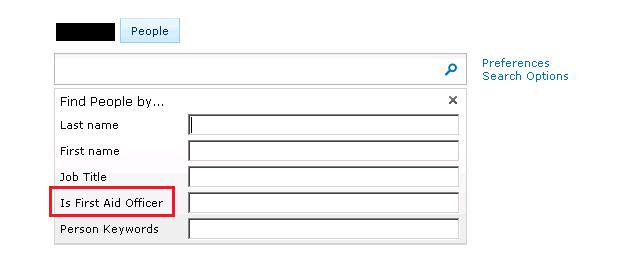
If you are using the OOTB FAST Search Center site template then by default you get a tab for People search on the main page. On this tab you get a Search Options link, which  brings up the dropdown box that allows you to search by certain properties of the user profile:

How do you add a custom property to this dropdown? For example, you allow users to indicate if they are a First Aid Officer in their profile. You want users to be able to search for First Aid Officers in the organisation.

To achieve this you must first define the custom property for your user profile and map it to a managed property. I will not cover this as this post is more about configuring the Search Options dropdown. Just be sure to tick the Indexed option in the Search Settings section when defining the new property.

You can control the fields being shown in the Search Options dropdown by setting the Properties property of the People Search Box (which is a web part). This property holds a piece of XML and can be edited right in the SharePoint UI by editing the web part. (This property can be found under the Miscellaneous category in the web part editor.)

OOTB, this XML is as below:

<Properties>
	<Property Name="LastName" ManagedName="LastName" ProfileURI="urn:schemas-microsoft-com:sharepoint:portal:profile:LastName"/>
	<Property Name="FirstName" ManagedName="FirstName" ProfileURI="urn:schemas-microsoft-com:sharepoint:portal:profile:FirstName"/>
	<Property Name="JobTitle" ManagedName="JobTitle" ProfileURI="urn:schemas-microsoft-com:sharepoint:portal:profile:SPS-JobTitle"/>
	<Property Name="PersonKeywords" ManagedName="PersonKeywords" ProfileURI="urn:schemas-microsoft-com:sharepoint:portal:profile:SPS-PersonKeywords">
		<EffectiveProperty Name="Responsibility" ManagedName="Responsibility" ProfileURI="urn:schemas-microsoft-com:sharepoint:portal:profile:SPS-Responsibility"/>
		<EffectiveProperty Name="Skills" ManagedName="Skills" ProfileURI="urn:schemas-microsoft-com:sharepoint:portal:profile:SPS-Skills"/>
		<EffectiveProperty Name="Interests" ManagedName="Interests" ProfileURI="urn:schemas-microsoft-com:sharepoint:portal:profile:SPS-Interests"/>
	</Property>
</Properties>

As you can see the four Property elements in the XML map to the four options you see on the dropdown. The attributes of each Property element is pretty self-explanatory:

  • Name: appears to be the display name that will appear on the dropdown
  • ManagedName: the name of the managed property that will be searched
  • ProfileURI: this is the name of the crawled property. You can get this by viewing the crawled property in Central Admin as shown below:


So, to add my First Aid Officer field, I would use this XML:

<Properties>
	<Property Name="LastName" ManagedName="LastName" ProfileURI="urn:schemas-microsoft-com:sharepoint:portal:profile:LastName"/>
	<Property Name="FirstName" ManagedName="FirstName" ProfileURI="urn:schemas-microsoft-com:sharepoint:portal:profile:FirstName"/>
	<Property Name="JobTitle" ManagedName="JobTitle" ProfileURI="urn:schemas-microsoft-com:sharepoint:portal:profile:SPS-JobTitle"/>
	<Property Name="Is First Aid Officer" ManagedName="IsFirstAidOfficer" ProfileURI="urn:schemas-microsoft-com:sharepoint:portal:profile:IsExecutiveAssistant"/>
	<Property Name="PersonKeywords" ManagedName="PersonKeywords" ProfileURI="urn:schemas-microsoft-com:sharepoint:portal:profile:SPS-PersonKeywords">
		<EffectiveProperty Name="Responsibility" ManagedName="Responsibility" ProfileURI="urn:schemas-microsoft-com:sharepoint:portal:profile:SPS-Responsibility"/>
		<EffectiveProperty Name="Skills" ManagedName="Skills" ProfileURI="urn:schemas-microsoft-com:sharepoint:portal:profile:SPS-Skills"/>
		<EffectiveProperty Name="Interests" ManagedName="Interests" ProfileURI="urn:schemas-microsoft-com:sharepoint:portal:profile:SPS-Interests"/>
	</Property>
</Properties>

And here is the result:

The last thing to note is if your property is a boolean (yes/no), then you will have to use 1 or true as the search value.

Posted in Search, SharePoint 2010 | 6 Comments

Tips for organising your SharePoint project in Visual Studio

Becky Bertram recently blogged about Visual Studio project organisation for SharePoint. I agree with most of her points, and below are 3 additional conventions I’d suggest to others:

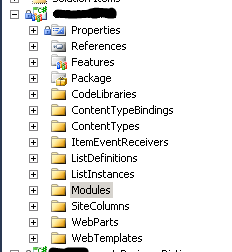
1. Always group SharePoint project items (SPI) into folders by project item types

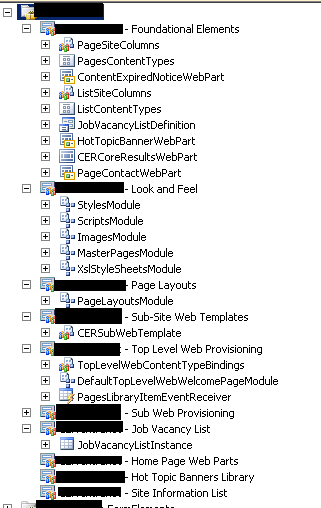
Put all content type SPIs into a folder called ContentTypes, all site column SPIs into a folder called SiteColumns, and so on. This allows the content of the project to be more discoverable at a glance. For example, you can quickly get a high level idea of the content being deployed by the project below:

2. Always append the SPI type to the name of the SPI

If your project has a Feedback content type and a Feedback list instance, then name the project items as FeedbackContentType and FeedbackListInstance. Do this for all SPIs in the project. This helps identify the item in views such as the Feature Designer, and particularly the Package Explorer.

I find myself using the Package Explorer quite a bit these days. This is because Visual Studio automatically adds new SPIs to the last feature added to the project – and often this is not where you want the SPI to go. Using the Package Explorer, you can quickly verify the content of your features, and can easily cut/paste SPIs between features to correct the location of SPIs misplaced by Visual Studio.

3. Getting the feature boundary right

How many features should you have? Which SPIs should go into which features? These are the guiding principles I use to address these questions:

  1. Reduce the number of features where possible. The more features the more maintenance and administration overhead.
  2. Define feature boundary by functionality. Group SPIs related to a particular functionality into one feature. Each feature should represent a unit of functionality – the more coarse the unit the better. This is so that it may be possible to a) enable a functionality by activating only one feature, and b) deactivate the feature without affecting other functionalities.
  3. If a functionality could be reused elsewhere, group the SPIs supporting this functionality into their own feature. This is so that this functionality (and only it) could be activated in other locations (e.g. in a different site collection) without also activating other components that are not relevant to the functionality and the alternate location. Sometime ago I made a mistake of putting the masterpages, CSS, page layouts and other stuffs into one feature. After deployment, a new site collection was deployed to the same farm and needed to use the same masterpage to achieve the same corporate branding. We activated the feature I originally built, but this also deployed the page layouts and other stuffs that are not applicable to the new site collection.

After all however, I believe there is one rule that rules them all, and that is consistency. Whatever you choose to do, make sure you do it consistently.

Posted in Practices, SharePoint, SharePoint 2010 | Leave a comment

SPException “The collection cannot be modified.” when calling SPContentType.Update()

If you are getting the SPException “The collection cannot be modified.” when calling SPContentType.Update() then ensure that the content type you are updating was not retrieved from the SPWeb.AvailableContentTypes collection. Content types retrieved from this collection (as oppose to SPWeb.ContentTypes) are read-only.

The AvailableContentTypes collection gives you all content types available at the web, i.e. including those content types defined at the parent site collection. If you debug and inspect this collection however, you will see that it has a non-public property called ReadOnly and its value is true. Content types retrieved from this collection also have a non-public property Collection.ReadOnly – which is also true.

If you need to update a content type, retrieve it from the SPWeb.ContentTypes collection instead.

Posted in Content Types, SharePoint, SharePoint 2010 | 7 Comments

Adding Browse button to pick a document when creating Link to a Document

The OOTB Link to a Document content type is quite neat. It allows you to create a link to documents in other locations in your site. External links are also possible. The user experience is quite poor. The user either has to:

  • Know the URL of the document they want to link to and type it into the text box, or
  • First go to the location of the document, copy its URL, then go back to where they wanted to create the link, then paste the URL into the text box.

In this post I will provide a walkthough of a relatively simple solution you can implement to provide a Browse button on the form that creates the Link to a Document.

The user gets an icon to browse for the document they want to link to:
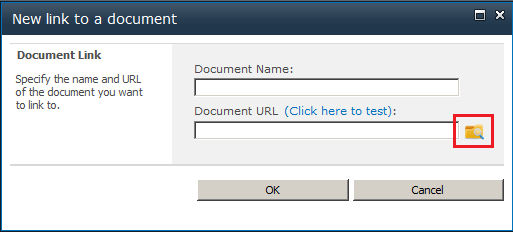
Clicking the browse icon brings up a dialog for browsing the site and selecting a document:
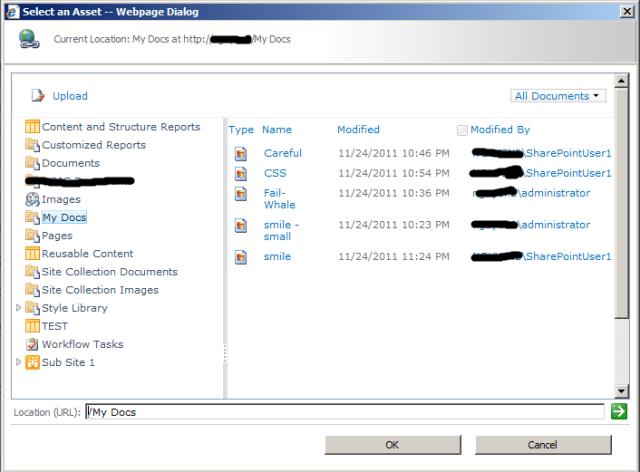
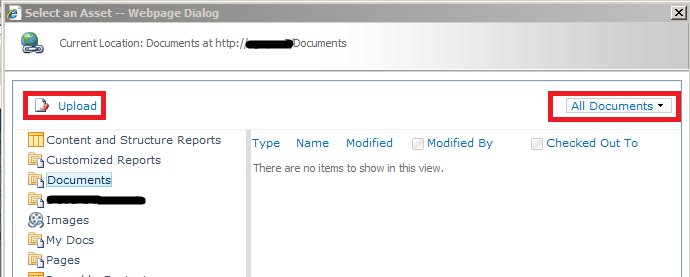
Double clicking on a document closes the dialog and populates the previous form with the name and URL of the selected document:
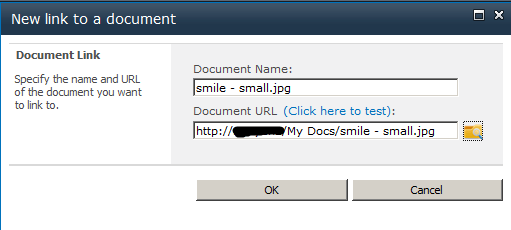
1. Create a custom template for the Link to a Document content type

The input form that you see when creating a new Link to a Document is actually the document template for that content type. Check the settings of the Link to a Document content type in SharePoint and you will see that it is set to /_layouts/NewLink.aspx.

We will create a clone of this page, NewLink.aspx, and add our browse icon to it. We will then configure the Link to a Document content type to use our new page as its document template.

Create a new empty SharePoint project (mine is called BNH.SharePoint.NewLinkWithBrowse) and specify it to be farm solution. Add a SharePoint “Layouts” Mapped Folder to the project. Right click on the sub-folder underneath the Layouts folder and choose to add an Existing Item…. Browse to C:\Program Files\Common Files\Microsoft Shared\Web Server Extensions\14\TEMPLATE\LAYOUTS and select the Newlink.aspx file. This will add a copy of the NewLink.aspx file to our solution. Your solution should now look like this:
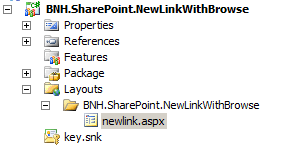
2. Configure Link to a Document to use the custom template

We will now configure the Link to a Document content type to use our custom template and test that things are still hanging together. Go ahead and deploy the solution. Then, go to your SharePoint site > Site Settings > Site Content Types > Link to a Document > Advanced settings > and change the Document Template to be /_layouts/BNH.SharePoint.NewLinkWithBrowse/NewLink.aspx.

Test to ensure that you can still create new Link to a Document items.

3. Add browse icon to document template

We will now customise the template we have just cloned. The dialog that comes up to allow the user to browse for a document to link to is actually an OOTB control, namely the AssetUrlSelector control. This control renders a button/image on the page. When clicked, this button/image launches a dialog that allows the user to browse the contents of the site. When a user selection is made, the control can either populates a text box with the URL of the selected document, or call a JavaScript callBack function.

See these links for more info on this control:

Back in Visual Studio edit the Newlink.aspx page. Add the following tag registration to the page. This will allow us to reference the AssetUrlSelector control.

<Register TagPrefix="cms" Namespace="Microsoft.SharePoint.Publishing.WebControls"
Assembly="Microsoft.SharePoint.Publishing, Version=14.0.0.0, Culture=neutral, PublicKeyToken=71e9bce111e9429c" %>

Scroll down and search for the control with the following markup:

<wssawc:InputFormTextBox title="<%$Resources:wss,newlink_url%>" class="ms-input" ID="UrlInput" Columns="35" Runat="server" maxlength=255 width=300 />

This is the URL text box on the form. Add the following markup for our browse icon directly below the URL text box above:

<cms:AssetUrlSelector ID="assetUrlSelector" runat="server" AssetUrlTextBoxVisible="false" ButtonType="Image" PickerButtonImage="/_layouts/BNH.SharePoint.NewLinkWithBrowse/File-Explorer-32.png" ClientCallback="assetLinkSelected" />

In the above we have applied a number of settings for our AssetUrlSelector control, including:

  • AssetUrlTextBoxVisible=”false” – The control by default has its own text box to display the URL of the selected document. We do not need this as we will be using the text boxes of the Link to a Document form.
  • We have set the control to render an image rather than a button. We will later add the image file to our solution.
  • ClientCallBack=”assetLinkSelected” – This is the important setting. This is a custom JavaScript that we will add in the next step. This script will be called to handle the user’s selection.

Search for the Content tag with ContentPlaceHolderID=”PlaceHolderAdditionalPageHead”. This tag contains a number of JavaScript functions. Add the following JavaScript as the last function to this tag:

function assetLinkSelected(newAssetUrl, newAssetText, configObject, returnValue) {
	/*If newAssetUrl is an internal SP URL, it will not contain the server path (i.e.
	the http://hostName:81 part). In this case we will need to append the server path to it
	for it to pass validation.

	If the newAssetUrl is an external URL, it will have the full absolute path and we won't have to touch it.
	*/
	var serverPath = "";
	var httpIndex = newAssetUrl.toLowerCase().indexOf("http://");
	var httpsIndex = newAssetUrl.toLowerCase().indexOf("https://");

	if (httpIndex == -1 && httpsIndex == -1)
	{
		//We want to get the http://hostName:81 part of the current location. window.location.origin
		//would give us this, but apparently it doesn't work on all browsers. To be sure we will just
		//construct the path from various parts of the current location.

		var currentLocation = window.location;

		serverPath = currentLocation.protocol + "//";
		serverPath += currentLocation.hostname;
		if (currentLocation.port != "" && currentLocation.port != null) {
			serverPath += ":" + currentLocation.port;
		}
	}
	var absoluteAssetUrl = serverPath + newAssetUrl;

	var inputTextBox = document.getElementById("ctl00_PlaceHolderMain_ctl01_ctl01_UrlInput");
	inputTextBox.value = absoluteAssetUrl;

	var nameInputTextBox = document.getElementById("ctl00_PlaceHolderMain_ctl01_ctl01_NameInput");
	nameInputTextBox.value = newAssetText;
}

The URL and descriptive text of the document selected by the user is passed to the JavaScript above as the first 2 arguments. Essentially in this function we retrieve the URL and Name text boxes of the create a Link to a Document form by their client ID, and then set their value to the URL and descriptive text provided to us by the AssetUrlSelector.

The only slightly tricky bit here is that the OOTB form requires the value in the URL text box to start with http:// or https://. The URL returned by the AssetUrlSelector however is server relative (i.e. do not have the http://hostName part). We therefore will need to append the http://hostName part to the URL value for it to pass validation.

The other thing is that the user could type an external URL into the AssetUrlSelector (e.g. http://www.google.com), in which case an absolute URL will be returned to our script and we won’t have to do anything.

Next, we will add an image to our solution that will be used as the browse icon. In Visual Studio right click on the sub-folder underneath the Layouts mapped folder and add an image of your choice (e.g. http://www.iconspedia.com/dload.php?up_id=94032). Remember to update the PickerButtonImage attribute of the AssetUrlSelector control in the markup of the Newlink.aspx file to match the image of your choice.

The last thing we’ll do is apply some minor styling code to the Newlink.aspx page. Search for the Content tag with ContentPlaceHolderID=”PlaceHolderMain”. Add the following CSS after the beginning of this tag:

<style>
	.ms-assetpicker-imagebutton
	{
		width: 20px;
	}
</style>

The above CSS will resize the image of the browse icon. Depending on the image you have chosen to use, this CSS may not be necessary.

The width of the URL (ID=”UrlInput”) and Name (ID=”NameInput”) text boxes on the page is set to 300. I have found that the browse icon wraps to the next line on some browsers with this setting. Change this to 260 to ensure that it does not wrap.

Go ahead and deploy your solution.

4. Bonuses

By using the AssetUrlSelector, you get these bonuses:

  • The Upload button that allows the user to directly upload a document to a location, then create a link to it
  • The View selector can be used to filter a location to find the document to link to
 

5. Download complete code

You can download the complete Visual Studio solution here: BNH.SharePoint.NewLinkWithBrowse.zip.

6. Other posts you may be interested in

Want to improve the user experience in SharePoint? Check out my other custom solutions here.

Posted in SharePoint 2010 | 7 Comments

Null reference exception when adding content type to document library at Microsoft.SharePoint.SPFile.UpdateInternal

I was adding content types to a document library using C# and got a Null reference exception when calling SPList.ContentTypes.Add(contentType). The stack was:

at Microsoft.SharePoint.SPFile.UpdateInternal(Boolean migrationSemantics, Boolean reGhost)
   at Microsoft.SharePoint.SPContentTypeCollection.AddContentType(SPContentType contentType, Boolean updateResourceFileProperty, Boolean checkName, Boolean setNextChildByte)
   at Microsoft.SharePoint.SPContentTypeCollection.Add(SPContentType contentType)
   at Harness.BernadoHarness.Execute() in C:\Project\BernadoHarness.cs:line 24
   at Harness.Program.Main(String[] args) in C:\Project\Program.cs:line 34
   at System.AppDomain._nExecuteAssembly(Assembly assembly, String[] args)
   at Microsoft.VisualStudio.HostingProcess.HostProc.RunUsersAssembly()
   at System.Threading.ExecutionContext.Run(ExecutionContext executionContext, ContextCallback callback, Object state)
   at System.Threading.ThreadHelper.ThreadStart()

My code to add the content type was fairly innocent:

using (var site = new SPSite("http://myServer/subSite1"))
{
	using (var web = site.OpenWeb())
	{
		SPList list = web.Lists["Documents Library"];
		SPContentType contentType = null;

		contentType = web.AvailableContentTypes["Meeting Agenda"];
		list.ContentTypes.Add(contentType);
	}
}

It turns out that it was because I have 2 ItemEventReceivers (ItemUpdating and ItemAdded) on the document library and these were raised when the content type was being added to the document library. When these events are raised as part of the content type being added, the properties.ListItem would be null. My 2 receivers do some work with the properties.ListItem object, but did not anticipate that this could be null, hence they felt over and raised a Null exception to the SPList.ContentTypes.Add() method. Adding a null check to my 2 receivers fixed the issue.

Now, the interesting point here is why adding a content type to the library would raise the ItemUpdating and ItemAdded events? This is because adding a content type to a document library may involve adding/updating the document template file to the resource folder of the content type, which is a sub-folder of the library – and hence raise the item events.

Posted in SharePoint 2010 | 1 Comment